Our Top Picks
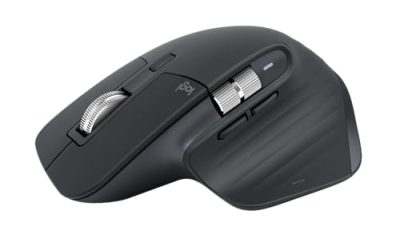
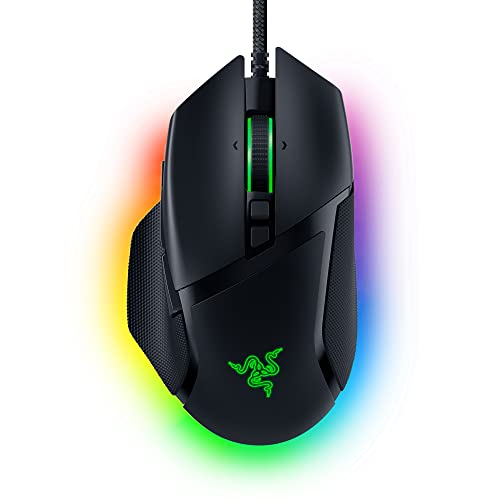 Razer Basilisk V3 Customizable RGB Wired Ergonomic GamingMouse2.96 x 5.12 x 1.67 inches0.2 poundsCheck on Amazon
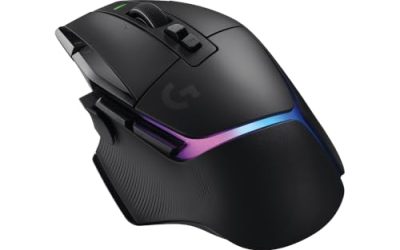
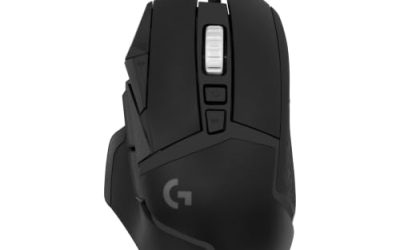
 Logitech G502 X Plus Wireless RGB Gaming MouseWireless7.1 x 4.6 x 2.7 inches0.84 poundsCheck on Amazon

Picking a gaming mouse for video editing is really a decision about your timeline habits: how you move along hours of footage, how often you repeat the same handful of commands, and whether your hand stays comfortable through a long colour or assembly session. Raw sensor speed matters far less here than button layout and wheel behaviour.
This guide is for editors who cut on a gaming-capable desk setup, streamers who trim their own recordings, and creators who want one mouse that handles both play and project work. Every pick below is a gaming mouse chosen from the features its Amazon listing states, especially programmable buttons, wheel modes, sensor range, and shape. Weight, grip, and whether a mouse stores its own button profiles also shaped the shortlist, because an editing session can keep one hand on the mouse for hours at a stretch without a break.
Quick Picks
As an Amazon Associate we earn from qualifying purchases
| Product | Best for | Key spec from title |
|---|---|---|
| Logitech G502 HERO | Wired editing with a free-spin wheel | 25,600 DPI, 11 Buttons |
| Razer Basilisk V3 | Tilt-wheel timeline movement | 26K DPI Optical Sensor, HyperScroll Tilt Wheel |
| Logitech G502 X Plus | Wireless editing with programmable tilt | HERO 25K Sensor, LIGHTSPEED Optical |
| Razer Naga V2 Pro | Macro-heavy editing shortcuts | 19+1 Programmable Buttons, Swappable Side Plates |
| Corsair Scimitar Elite Wireless | A full thumb grid of editing commands | 26,000 DPI, 16 Programmable Buttons |
How to Choose
Count the Buttons You Will Actually Map
Start by listing the editing commands you repeat until they become reflex: ripple delete, split at playhead, undo, zoom in, zoom out, and jumping between markers are typical candidates. A mouse with eleven programmable buttons covers that core set with room to spare, while a sixteen or twenty button model suits editors who also assign tool switches or nested sequences. Buttons only help when they sit where your thumb lands naturally, so favour layouts you can reach without shifting your grip. A crowded grid you keep mis-pressing is worse than a smaller set you use confidently every session.
Treat the Scroll Wheel as a Timeline Tool
On a timeline, the wheel does two different jobs. Notched, tactile scrolling suits stepping through a cut in small, controlled increments, while a free-spin mode lets you travel across a long sequence without repeated finger strokes. Listings that state both modes, such as a dual-mode hyper-fast wheel, give you both behaviours in one mouse. A tilt wheel adds sideways inputs, which some editors map to horizontal scrolling. Check the listing wording carefully: free-spin, tilt, and adjustable wheel resistance are separate features, and a mouse may offer one without the others.
Match Sensor Range to Deliberate Cursor Work
Gaming sensors advertise very high maximum DPI figures, but editing rewards steadiness more than extremes. What matters is that the listed range lets you run a low, controlled sensitivity for fine trim adjustments and still raise it when crossing multiple monitors. Listings for these picks state ranges reaching 25,600, 26,000, or 30,000 DPI, with adjustment handled in the maker’s software. Also note whether sensitivity can be changed from the mouse itself, because a dedicated shift button lets you slow the cursor for a precise drag and return instantly afterwards.
Decide Between Wired Simplicity and Wireless Freedom
A wired mouse never needs charging and keeps a desk setup simple, which suits a fixed editing workstation. Wireless models clear cable drag from the desk and move easily between a desktop and a laptop, but their listings add battery figures you should read closely, since stated life varies with lighting and connection type. Check which connections the listing names, whether that is a dedicated wireless receiver, Bluetooth, or a cable for charging while you work. Also confirm the stated operating system support covers your editing machine before choosing.
The 5 Best Options
Logitech G502 HERO

Editors who stay wired should look closely at this one, because its dual-mode wheel switches between ratcheted steps and free spinning, covering both careful nudging and fast travel along a sequence. Eleven programmable buttons give your most repeated commands a permanent home under your fingers, and onboard memory means those assignments are stored on the mouse itself. The adjustable weight system, built around five included weights, lets you settle on a heft that feels stable during slow, deliberate drags across the timeline rather than accepting a fixed balance chosen for someone else.
Specs
- Sensor: HERO 25K, up to 25,600 DPI
- Adjustable DPI range: 200 to 25,600 DPI
- Buttons: 11 programmable buttons
- Scroll wheel: Dual-mode hyper-fast scroll wheel
- Weight system: Five 3.6g adjustable weights
- Memory: On-board memory
- Connection: Wired, PC/Mac
- Dimensions: 5.2 x 2.95 x 1.57 inches
- Item weight: 4.3 ounces
- Model number: 910-005469
Best for: Wired editors who want a free-spin wheel and stored profiles.
Watch out for: The wired connection and weight system add bulk, so check the stated dimensions against your hand and grip.
ASIN: B07GBZ4Q68
Razer Basilisk V3
The headline feature here is the HyperScroll tilt wheel, which the listing says free-spins until stopped or switches to a tactile mode for more precision, and tilting it adds two more inputs you can assign. That combination maps naturally onto timeline work, where horizontal movement and controlled stepping happen constantly. Razer describes the shape as ergonomic, and the eleven programmable buttons accept macros and secondary functions, so a single press can carry a short command sequence. It is a wired design, keeping the setup straightforward for a desk that rarely changes.
Specs
- Sensor: 26K DPI optical sensor
- Buttons: 11 programmable buttons
- Scroll wheel: HyperScroll tilt wheel with free-spin and tactile modes
- Lighting: Chroma RGB lighting
- Shape: Ergonomic, as stated in the listing title
- Model number: RZ01-04000100-R3U1
Best for: Editors who want tilt inputs and dual wheel modes on a wired mouse.
Watch out for: Button and macro assignments run through Razer’s software, so confirm you are happy configuring them there.
ASIN: B09C13PZX7
Logitech G502 X Plus
Going wireless does not mean giving up wheel tricks here. The listing describes a hyperfast scroll wheel that spins freely or scrolls precisely in ratchet mode, and its left and right tilt inputs are fully programmable. Thirteen programmable controls leave space for editing shortcuts beyond the usual pair of thumb buttons, while the removable DPI-shift button can be reversed to sit closer to your thumb or replaced with a cover. LIGHTSPEED wireless keeps the desk clear, and the stated battery life stretches far longer with lighting off, which suits editors who leave RGB disabled anyway.
Specs
- Sensor: HERO 25K gaming sensor
- Controls: 13 programmable controls
- Scroll wheel: Hyperfast wheel, free-spin or ratchet mode, programmable left and right tilt
- Switches: LIGHTFORCE hybrid optical-mechanical switches
- Connection: LIGHTSPEED wireless, USB-C charging cable included
- Battery life: Up to 120 hours, 37 hours with RGB on, as stated by the manufacturer text
- Weight: 106 g
- Extras: Removable and reversible DPI-shift button, PTFE feet, POWERPLAY compatible
Best for: Wireless editors who still want a free-spin wheel and tilt inputs.
Watch out for: Stated battery life drops sharply with RGB lighting on, so plan around the lower figure if you use the lighting.
ASIN: B092CB69Q4
Razer Naga V2 Pro

When your editing relies on long shortcut chains, this is the button-heavy route. Three magnetic side plates swap between two, six, and twelve button layouts, giving up to nineteen plus one programmable buttons depending on the plate fitted. That lets one editor keep a dense grid for complex sessions and a simpler plate for everyday work. The HyperScroll Pro wheel is listed with adjustable tactility, so its feel can be tuned rather than accepted as fixed. Wireless connections cover both Razer HyperSpeed and Bluetooth, and the stated battery figure is the longest in this guide.
Specs
- Sensor: Focus Pro 30K optical sensor
- Buttons: 19+1 programmable buttons with the fitted side plates
- Side plates: Swappable 12, 6, and 2-button magnetic side plates
- Scroll wheel: HyperScroll Pro wheel with adjustable tactility
- Switches: Optical mouse switches Gen-3
- Battery: 300 hr battery, as stated in the listing title
- Model number: RZ01-04400100-R3U1
Best for: Editors who map many shortcuts and macros to the mouse.
Watch out for: The twelve-button plate takes practice to use by touch alone, so expect a learning period before the grid feels automatic.
ASIN: B0BGJTLFN5
Corsair Scimitar Elite Wireless

Corsair takes a different approach to the thumb grid: its patented twelve-button Key Slider side panel physically adjusts to fit your hand, so the buttons sit under your thumb instead of forcing your thumb to adapt. Sixteen fully programmable buttons in total give plenty of room for editing commands, and iCUE compatibility is stated for configuration. Connectivity is flexible, with sub-1ms SLIPSTREAM wireless, Bluetooth, or a USB wired connection for charging while you play or work. The listing also states a maximum sensitivity of 26,000 DPI and a long wireless battery figure for extended sessions away from the cable.
Specs
- Sensor: Optical, maximum sensitivity 26,000 DPI
- Buttons: 16 fully programmable buttons
- Side panel: 12-button Key Slider panel that adjusts to fit your hand
- Connection: SLIPSTREAM wireless, Bluetooth, or USB wired
- Polling: 2,000Hz hyper-polling over SLIPSTREAM, as stated in the listing
- Battery: Up to 150 hours on a single charge, as stated in the listing
- Software: iCUE compatible
- Dimensions: 4.69 x 2.89 inches
- Item weight: 0.25 pounds
- Model number: CH-9314311-NA
Best for: Editors who want an adjustable thumb grid and flexible connections.
Watch out for: The listing gives two battery figures in different sections, so treat the longer one as a best case rather than a promise.
ASIN: B0CCVYHZ9N
Which One Fits Your Situation
You Cut Long-Form Content at a Fixed Desk
A wired pick removes charging from your routine entirely, and the G502 HERO fits this setup well. Its free-spin wheel helps you cross lengthy sequences quickly, the ratchet mode takes over for careful work near a cut, and onboard memory keeps your button assignments stored on the mouse. The Basilisk V3 is the alternative when tilt inputs matter more to you than stored profiles.
You Edit on Both a Desktop and a Laptop
Choose a wireless model whose listing names more than one connection type. The Scimitar Elite Wireless covers a dedicated receiver, Bluetooth, and wired use, so moving between machines is simple. The G502 X Plus suits a single main workstation where you want the receiver connection, programmable tilt, and a wheel that still free-spins for long timelines.
Your Workflow Runs on Macros and Shortcut Chains
Look at the two button-grid designs first. The Naga V2 Pro lets you change the grid itself by swapping side plates, which helps if your shortcut load changes between projects. The Scimitar Elite Wireless instead keeps one twelve-button panel and slides it to match your thumb position. Either way, start with a handful of assignments and add more gradually.
You Share the Mouse Between Gaming and Editing
Pick a mouse with enough programmable controls to hold two distinct layouts, one for games and one for the editor. The G502 X Plus and its thirteen controls handle that split comfortably, and its reversible DPI-shift button adapts to either role. The G502 HERO works for the same dual use at a wired desk, with its weight system tuned once for both tasks.
Common Mistakes
- Buying the highest DPI figure in the list, then editing at a sensitivity so fast that precise trim drags become shaky.
- Mapping every programmable button on day one, then forgetting half the layout and reverting to the keyboard anyway.
- Ignoring the wheel modes in the listing and ending up with a notched-only wheel when your work needs free-spin travel.
- Choosing a large, button-heavy shell without checking the stated dimensions against your hand size and grip style.
- Assuming a gaming mouse works with your editing software’s shortcuts automatically, without checking how its configuration software assigns keystrokes and macros.
Frequently Asked Questions
Can a gaming mouse replace a dedicated editing controller?
Not entirely, based on the features listed here. These mice offer programmable buttons, macros, and versatile wheels, which cover shortcut-heavy work well, but none of the listings describes a jog shuttle or dial built for frame-by-frame control. Treat a gaming mouse as a strong everyday editing tool rather than a full controller replacement.
How many programmable buttons do I need for video editing?
Most editors cover their core commands with the eleven buttons on the wired picks in this guide. A larger grid, such as sixteen buttons or the Naga V2 Pro’s swappable plates, helps when you assign tool switching, marker actions, and multi-step macros as well. Count your repeated commands first, then choose the layout that fits that list.
Is a free-spin scroll wheel genuinely useful on a timeline?
Yes, for longer projects. A wheel that free-spins travels across minutes of footage with one flick, while a tactile mode handles small, deliberate movements near an edit point. Listings that state both modes, or a tilt wheel for sideways input, give you both behaviours without reaching for scroll bars or zoom controls as often.
Should I choose wired or wireless for an editing desk?
Either works, and the listings show the trade clearly. Wired models such as the G502 HERO never need charging. Wireless picks add battery figures and connection options to check, but remove cable drag and move between computers more easily. Decide by whether your desk setup stays fixed or changes between machines regularly.
FAQ
Can a gaming mouse replace a dedicated editing controller?
How many programmable buttons do I need for video editing?
Is a free-spin scroll wheel genuinely useful on a timeline?
Should I choose wired or wireless for an editing desk?
More from Amazon
Programs that pair well with the guide above. Offers and eligibility are set by Amazon and may change.
Free shipping on eligible items, Prime Video and more. Eligible new members can start with a free trial.
Start a Prime free trialAd-free music streaming. Eligible new subscribers can start with a free trial.
Try Music Unlimited freeA Prime membership for ages 18-24 with a trial period. Eligibility is set by Amazon.
See Prime for Young AdultsAudiobooks and podcasts to listen to on the go. Eligible new members can start with a free trial.
Try Audible freeAs an Amazon Associate we earn from qualifying purchases.