Our Top Picks
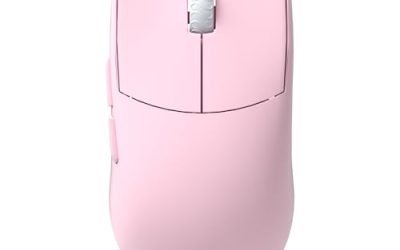
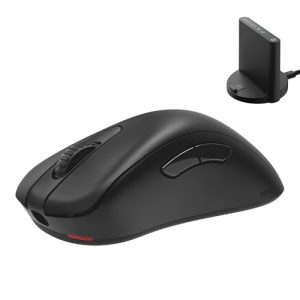
 Razer Orochi V2 Wireless Gaming Mouse4.26 x 1.52 inch (Pack of 1)4.26 x 1.52 x 2.47 inches0.13 poundsCheck on Amazon


A Chromebook changes the mouse-buying rules. ChromeOS has no place for the Windows companion apps that many gaming mice rely on, so features locked inside software, such as remapped buttons, DPI stages beyond the default and lighting control, may never be reachable. What a Chromebook rewards instead is simple, honest hardware: Bluetooth that pairs without fuss, a USB receiver that works the moment it is plugged in, on-board settings that travel with the mouse, and a sensor that tracks well with zero configuration.
The four mice in this guide were picked with that filter applied first and gaming credentials second. Every one of them connects to a Chromebook over Bluetooth or USB and plays well with GeForce NOW, Xbox Cloud Gaming and the growing library of Android and Linux games on ChromeOS, without asking you to install anything. Two are true gaming mice with high-performance sensors, one is a certified Works With Chromebook mouse that games respectably, and one is a wired classic whose on-board memory makes it software-independent.
As an Amazon Associate, we earn from qualifying purchases.
Quick Picks
| Product | Best for | Key point |
|---|---|---|
| Logitech Pebble Mouse 2 M350s | Chromebook owners who want a certified, silent everyday mouse | Works With Chromebook certified, Bluetooth, three-device switching |
| Razer Orochi V2 | Players who want a real gaming sensor on a Chromebook | Bluetooth and HyperSpeed modes with an 18K optical sensor |
| Logitech G305 LIGHTSPEED | Players with a USB port who want low-latency wireless | HERO sensor and 250-hour battery from a single AA |
| Logitech G502 HERO | Wired players who want buttons and profiles without software | On-board memory holds five profiles set up once on any PC |
How to Choose
Connection comes before everything. Bluetooth is the safest route on a Chromebook: it needs no port, pairs through the ChromeOS settings menu and leaves your USB-C ports free for charging and displays. A 2.4 GHz USB receiver is the lower-latency route and works instantly on Chromebooks with a USB-A port, or through the hub you already own. Wired USB always works. What will not work is any feature that lives only in a Windows or Mac app, so check where each setting is stored before you buy.
Look for Works With Chromebook certification where it exists. Logitech’s certified mice are checked against Google’s compatibility programme, which removes the pairing guesswork entirely. Certification matters most for Bluetooth models, because it confirms the mouse behaves properly with ChromeOS power management and reconnects cleanly after sleep.
On-board memory replaces software. A mouse that stores DPI stages and button layouts in its own memory can be configured once, on any borrowed Windows PC or through a maker’s web tool where offered, and then carries those settings to your Chromebook permanently. Mice without on-board memory fall back to factory defaults on ChromeOS, which is fine if the defaults suit you and limiting if they do not.
Match the mouse to Chromebook gaming reality. Most Chromebook gaming is cloud gaming, Android titles and browser games, where input lag from the stream dwarfs any difference between a good Bluetooth mouse and a wired one. Prioritise tracking quality, comfort and battery life over extreme polling rates, and remember that a mouse you also enjoy for school or work will get far more use than a specialist shell.
Best Options
Logitech Pebble Mouse 2 M350s

The Pebble Mouse 2 M350s is the easiest recommendation in this guide because it removes all doubt: it carries Works With Chromebook certification, pairs over Bluetooth Low Energy and switches between three devices with the Easy-Switch button, so one mouse can serve a Chromebook, a tablet and a phone. The sensor reaches 4000 DPI, which is plenty for cloud gaming, Android games and everyday work, and the clicks are quiet enough for classrooms and libraries.
Battery life is a standout: a single AA cell is rated for up to 24 months, which suits a device many owners charge only occasionally. The flat, pebble-shaped shell favours fingertip use and slips into a laptop sleeve without a bulge. It is not a hardcore gaming mouse, and it does not pretend to be; it is the certified, silent, always-ready option that happens to game perfectly well.
Specs
- Sensor Logitech optical with Darkfield-class tracking; DPI 400 to 4000; polling rate standard Bluetooth reporting; weight 76 g with battery; symmetrical low-profile shape; silent clicks; connection Bluetooth Low Energy with 3-device Easy-Switch; Works With Chromebook certified; battery up to 24 months from one AA cell
Best for: Chromebook owners who want a certified, silent everyday mouse
Watch out for: No side buttons and no high polling rate, so competitive players should pick the Orochi V2 or G305 instead
Razer Orochi V2
The Orochi V2 is a genuine gaming mouse that happens to be an excellent Chromebook partner. Its Bluetooth mode pairs directly with ChromeOS for everyday use and cloud gaming, while the HyperSpeed 2.4 GHz mode, through the USB receiver stored inside the shell, cuts latency for faster play on Chromebooks with a free port or hub. The 5G optical sensor tracks up to 18,000 DPI, far beyond what the other Bluetooth picks here offer.
Flexibility is the theme: the mouse runs on a single AA or AAA battery, trading weight against endurance, and delivers up to 950 hours on Bluetooth or up to 425 hours on HyperSpeed with a lithium AA fitted. At under 60 g without its battery it is also the lightest pick in this guide, and the compact shell suits fingertip grips and smaller hands. Razer’s Synapse software is Windows-only, but the Orochi needs none of it to pair and play.
Specs
- Sensor Razer 5G optical; DPI up to 18,000; polling rate up to 1000 Hz over HyperSpeed wireless; weight under 60 g excluding battery; compact symmetrical shape; Razer Mechanical Mouse Switches Gen-2; connection Bluetooth and 2.4 GHz HyperSpeed via USB receiver; battery up to 950 hours on Bluetooth or 425 hours on HyperSpeed from one AA or AAA cell
Best for: Players who want a real gaming sensor on a Chromebook
Watch out for: Button remapping and fine DPI steps beyond the on-mouse control need Synapse on a Windows PC, and the small shell will not suit large palm grips
Logitech G305 LIGHTSPEED
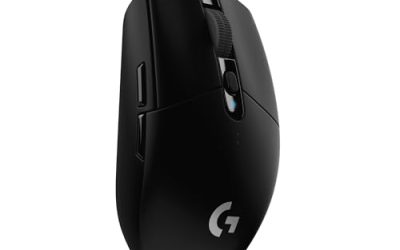
The G305 is the classic entry point into serious wireless gaming, and on a Chromebook it behaves exactly as it should: plug the LIGHTSPEED receiver into a USB port, or a hub on USB-C-only models, and the mouse simply works at a full 1000 Hz with no pairing menu and no software. The HERO sensor tracks up to 12,000 DPI, and the shell stores its settings on board, so the DPI button on top cycles your stages on any machine.
Endurance is the other headline: up to 250 hours of play from a single AA battery, in a 99 g mouse that has survived years of school bags and desk drawers. There is no Bluetooth, so the receiver is mandatory; keep it stored in the battery compartment when you travel. For Chromebook owners with a port to spare, this is the lowest-latency wireless route in the guide.
Specs
- Sensor Logitech HERO optical; DPI 200 to 12,000; polling rate 1000 Hz over LIGHTSPEED wireless; weight 99 g; compact symmetrical shape; mechanical button tensioning system; connection 2.4 GHz LIGHTSPEED via USB receiver, no Bluetooth; battery up to 250 hours from one AA cell; on-board memory for settings
Best for: Players with a USB port who want low-latency wireless
Watch out for: The USB-A receiver needs a port or a hub on USB-C-only Chromebooks, and there is no Bluetooth fallback if the receiver is lost
Logitech G502 HERO

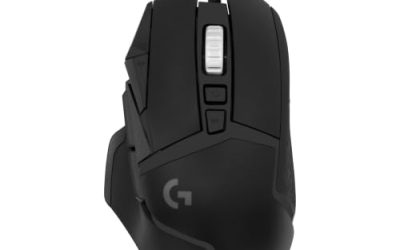
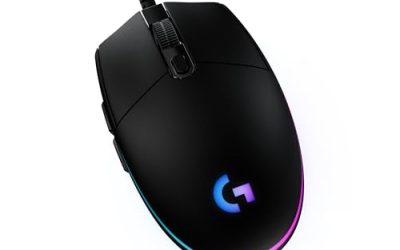
The G502 HERO looks like an odd Chromebook pick until you notice its on-board memory. Its five profiles are stored in the mouse itself, so you can set DPI stages and button layouts once, using G Hub on any Windows or Mac machine you have access to, and the mouse then carries that configuration to your Chromebook with no software involved. Plugged in over USB, it works instantly, with the HERO 25K sensor tracking up to 25,600 DPI.
The 11 programmable buttons and dual-mode scroll wheel make it the most capable mouse here for games with many commands, and the wired connection removes battery and latency questions entirely. The costs are size and weight: 121 g before the optional tuning weights, in a large right-handed shell that is very much a desk mouse rather than a travel companion.
Specs
- Sensor Logitech HERO 25K optical; DPI 100 to 25,600; polling rate 1000 Hz wired; weight 121 g plus five optional 3.6 g tuning weights; right-handed ergonomic shape; 11 programmable buttons; dual-mode hyper-fast scroll wheel with tilt; connection wired USB; on-board memory for five profiles
Best for: Wired players who want buttons and profiles without software
Watch out for: Heavy and wired, so it suits a fixed desk; the initial profile setup needs one session with G Hub on a Windows or Mac computer
Which One Fits
Most Chromebook owners should take the Pebble Mouse 2 M350s: it is certified for the platform, silent, lasts for years on a battery and handles the gaming most Chromebooks actually do. Players who want a proper gaming sensor and the choice between Bluetooth convenience and low-latency wireless should take the Orochi V2. If your Chromebook has a USB port you can dedicate, the G305 gives full 1000 Hz wireless with legendary battery life, and the G502 HERO is the wired, button-rich option for a desk-bound setup.
Whichever you choose, test the pairing and the DPI button in your first session, while returning the mouse is still easy. ChromeOS compatibility is predictable with these four, but hand fit is personal.
Common Mistakes
Buying a mouse whose features live in Windows software. If DPI stages, remaps or lighting are set only in a companion app, they are out of reach on ChromeOS. Favour on-board memory, on-mouse controls and certified Bluetooth models.
Assuming every USB receiver works through every hub. Most do, but cheap unpowered hubs can drop wireless receivers under load. If your Chromebook is USB-C only, use the hub you already trust for storage and displays, and keep the receiver close to the mouse.
Chasing polling rate for cloud gaming. Streaming services add far more latency than a mouse ever will. A comfortable Bluetooth mouse serves cloud play better than an uncomfortable 1000 Hz one.
Forgetting the battery format. Chromebook bags are small. A mouse that runs for months on a single AA, like the Pebble 2 or G305, removes one more cable and one more thing to charge from your routine.
FAQ
Do gaming mice work on Chromebooks?
Yes, as long as they connect over Bluetooth, a USB receiver or a cable, which covers nearly all of them. The limitation is software: companion apps for Windows and Mac do not run on ChromeOS, so features stored in the mouse itself, like on-board profiles and DPI buttons, matter more than app-based extras.
Is Bluetooth or a USB receiver better for Chromebook gaming?
For cloud gaming and everyday play, Bluetooth is simpler and entirely adequate. A USB receiver gives a 1000 Hz connection with lower latency, which suits faster local games. Mice such as the Orochi V2 offer both, so you can switch by title.
What does Works With Chromebook certification mean?
It means the accessory has been checked by Google’s programme to work with ChromeOS, including reliable Bluetooth pairing and clean reconnection after sleep. The Pebble Mouse 2 M350s in this guide carries the certification, which removes compatibility guesswork.
Can I change DPI on a Chromebook without software?
Usually, yes. Most gaming mice have a DPI button on the shell that cycles preset stages with no software involved, and mice with on-board memory can store custom stages set up earlier on another computer, as the G502 HERO does.
Final Verdict
The Pebble Mouse 2 M350s is the Chromebook-safe default, the Orochi V2 is the real gaming mouse of the group, the G305 is the low-latency wireless workhorse and the G502 HERO is the wired option whose on-board memory defeats the software problem. Buy for connection and comfort first, and all four will serve a Chromebook well.
FAQ
Do gaming mice work on Chromebooks?
Is Bluetooth or a USB receiver better for Chromebook gaming?
What does Works With Chromebook certification mean?
Can I change DPI on a Chromebook without software?
More from Amazon
Programs that pair well with the guide above. Offers and eligibility are set by Amazon and may change.
Free shipping on eligible items, Prime Video and more. Eligible new members can start with a free trial.
Start a Prime free trialAd-free music streaming. Eligible new subscribers can start with a free trial.
Try Music Unlimited freeA Prime membership for ages 18-24 with a trial period. Eligibility is set by Amazon.
See Prime for Young AdultsAudiobooks and podcasts to listen to on the go. Eligible new members can start with a free trial.
Try Audible freeAs an Amazon Associate we earn from qualifying purchases.