Key takeaways
- Thermal Throttling: The most common consequence. When a CPU reaches its thermal limit (often around 90-100°C, though specific limits vary by model), it automatically reduces its clock speed to lower temperatures. This directly impacts your frame rates and overall system responsiveness.
- Reduced Component Lifespan: Consistently high temperatures can degrade the delicate components within your CPU and other motherboard parts over time, potentially shortening their lifespan.
- System Instability: In extreme cases, severe overheating can cause system crashes, Blue Screen of Death (BSOD) errors, and unexpected shutdowns.
In the high-octane world of PC gaming, keeping your CPU cool isn’t just about comfort; it’s about performance. Overheating can lead to thermal throttling, where your CPU deliberately slows itself down to prevent damage, resulting in frame rate drops and a frustrating gaming experience. As we push the boundaries of graphical fidelity in 2026, ensuring optimal CPU temperatures is more critical than ever. This guide will walk you through the most effective methods and products to tame your CPU’s heat.
Whether you’re a seasoned builder or a newcomer to the PC scene, understanding the factors contributing to CPU heat and how to mitigate them is paramount for sustained, high-performance gaming. Let’s dive into how to keep your processor running at its peak.
Our top picks


As an Amazon Associate we earn from qualifying purchases at no extra cost to you. Ratings are shown as listed on Amazon.
⚡ Save on Your Next PC — Amazon Prime
Prime members get fast free shipping on the systems above, plus early access to Prime Day & Black Friday PC deals. New members get a 30-day free trial.
Watch: How to Lower CPU Temperatures — Video Review
Understanding CPU Heat and Its Impact
Your CPU generates heat as a byproduct of its electrical activity. The more demanding the task – like running the latest AAA titles at ultra settings – the more power it draws and the hotter it gets. Excessive heat can lead to several issues:
- Thermal Throttling: The most common consequence. When a CPU reaches its thermal limit (often around 90-100°C, though specific limits vary by model), it automatically reduces its clock speed to lower temperatures. This directly impacts your frame rates and overall system responsiveness.
- Reduced Component Lifespan: Consistently high temperatures can degrade the delicate components within your CPU and other motherboard parts over time, potentially shortening their lifespan.
- System Instability: In extreme cases, severe overheating can cause system crashes, Blue Screen of Death (BSOD) errors, and unexpected shutdowns.
Essential Cooling Solutions
The primary way to combat CPU heat is through effective cooling. This involves improving how heat is transferred away from the CPU and dissipated into the surrounding air.
CPU Air Coolers
These are the most common type of CPU coolers. They consist of a heatsink (a block of metal with fins) and one or more fans. The heatsink absorbs heat directly from the CPU via a heat spreader, and the fans blow air across the fins to dissipate that heat.
- Choosing the Right Air Cooler: Look for coolers with a substantial heatsink surface area and high-quality fans. Brands like Thermalright offer excellent performance for their price point. For instance, the Thermalright Assassin X 120R Digital is a popular choice for its efficient TL-P12 PWM fan and digital screen for monitoring, supporting a wide range of modern sockets like AM4/AM5 and Intel LGA1700/1851.
- Installation is Key: Proper installation ensures optimal contact between the CPU and the cooler’s base. This includes applying thermal paste correctly.
Liquid Cooling (AIOs)
All-In-One (AIO) liquid coolers use a closed loop system with a pump, radiator, and fans. They offer potentially superior cooling performance, especially for high-end CPUs, and can be quieter under heavy load than some air coolers. While more complex than air cooling, they are a popular choice for enthusiasts seeking maximum thermal headroom.
Thermal Paste and Pads
Thermal paste is a crucial interface material that fills microscopic gaps between the CPU’s heat spreader and the cooler’s base, ensuring efficient heat transfer. Thermal pads serve a similar purpose but are often used for components like VRMs or memory chips, and sometimes as an alternative to paste on specific CPUs.
- High-Quality Thermal Interface Materials (TIM): Always use a reputable thermal paste. Newer formulations, like those designed for specific high-TDP CPUs, can offer marginal but noticeable improvements. For example, the AM5 CPU Thermal Pad AM5 Thermal Pastes Guard is specifically engineered to improve heat distribution on demanding AM5 processors, helping to lower operating temperatures.
- Reapplication: Thermal paste can dry out over time, typically after 2-3 years, reducing its effectiveness. Reapplying it can help restore cooling performance.
Case Airflow and Fan Management
Your PC case is the environment in which your CPU cooler operates. Good case airflow is essential to remove the hot air that your CPU cooler expels.
- Case Fan Configuration: Aim for a balanced airflow – typically more intake fans at the front and bottom, and exhaust fans at the rear and top. This creates a constant flow of cool air through the case and expels hot air.
- Fan Speed Control: Modern motherboards and software allow you to control fan speeds based on temperature. Setting up a custom fan curve ensures your fans ramp up when your CPU gets hotter, providing more cooling only when needed. The Comidox 2PCS DC 12V 4 Wire PWM PC CPU Fan Temperature Control Speed Controller Module can be a useful tool for fine-tuning this, especially if your motherboard lacks advanced fan control options or you want an independent high-temp alarm.
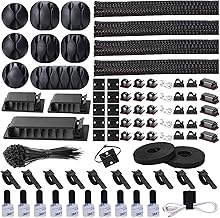
- Cable Management: Tidy cable management improves airflow by reducing obstructions within the case.
Specific Component Upgrades and Protections
Beyond the CPU cooler itself, certain components and modifications can directly address heat-related issues.
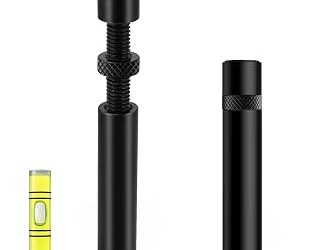
- CPU Contact Frame: For Intel CPUs, particularly on LGA 1700 sockets, the stock mounting can sometimes lead to uneven pressure distribution, impacting thermal paste spread. An LGA 1700 contact frame, like the LGA 1700 Contact Frame Anti-Bending, can improve this contact and potentially lower temperatures by ensuring a more uniform mounting pressure.
- Specialized Cooling for Other Devices: While this guide focuses on PCs, it’s worth noting that effective cooling extends to other gaming hardware. For instance, specialized cooling solutions like the Replacement Cooling Fan with 5 Blades for XBOX Series S Internal Intercooler are designed to maintain lower CPU temperatures during extended gaming sessions on that console. Similarly, for mobile gaming, products like the of 100 Copper Sheet Heat Dissipation Thermal Pad Heatsink can effectively lower smartphone operating temperatures.
Tips for Optimal CPU Temperatures
- Regularly clean dust from your PC components, especially heatsinks and fans, using compressed air.
- Monitor your CPU temperatures using software like HWMonitor, Core Temp, or MSI Afterburner. Aim to keep your CPU below 80°C during demanding gaming sessions for optimal longevity and performance.
- Ensure your PC case has adequate ventilation. Avoid placing your PC in enclosed spaces or directly against walls that block airflow.
- Consider upgrading your CPU cooler if you’re consistently hitting high temperatures with your stock cooler, especially if you have a higher-end CPU.
Frequently Asked Questions
What are ideal CPU temperatures for gaming?
For most gaming scenarios in 2026, aiming to keep your CPU below 80°C under load is a good target. Temperatures between 70-80°C are generally considered acceptable, while sustained temperatures above 85°C might indicate a need for better cooling.
How often should I reapply thermal paste?
It’s generally recommended to reapply thermal paste every 2-3 years, or sooner if you notice a significant increase in CPU temperatures or experience thermal throttling. High-quality pastes may last longer.
Can dust really make my CPU overheat?
Yes, absolutely. Dust buildup acts as an insulator, trapping heat on heatsinks and fans. This significantly reduces their efficiency and can lead to higher operating temperatures. Regular cleaning is crucial.
Is liquid cooling better than air cooling?
Not always. High-end air coolers can compete with or even outperform many AIO liquid coolers, especially in terms of noise-to-performance ratio. However, AIOs can offer a cleaner aesthetic and potentially better thermal headroom for extreme overclocking or very high TDP CPUs.
Conclusion
Maintaining optimal CPU temperatures is a foundational aspect of a smooth and enduring gaming experience. By understanding the causes of CPU heat, investing in appropriate cooling hardware, optimizing case airflow, and performing regular maintenance, you can ensure your CPU performs at its best for years to come. Don’t let heat be the bottleneck to your gaming enjoyment; take proactive steps to keep your system cool and powerful.