Key takeaways
- Install the latest stable NVIDIA Studio Driver when reliability matters more than gaming features.
- Set Maya’s viewport to the appropriate modern API, then test your scenes rather than assuming one mode is fastest for every project.
- Use lower-resolution textures and disable unnecessary subdivision during layout and animation.
- Reserve high-quality textures, displacement, motion blur, and final-quality shadows for look development or rendering.
- Place simulation caches on the fastest internal SSD and keep at least 15–20% of that drive free.
- Use the laptop’s performance mode and connect its full-power adapter during long renders or simulations.
- Monitor CPU temperature, GPU temperature, RAM use, and VRAM use during a representative scene; these measurements are more useful than a generic benchmark.
Best Laptops for Maya in 2026
The best laptops for Maya are mobile workstations or high-performance creator laptops with a recent 8-core-or-better CPU, a dedicated NVIDIA GPU with at least 8 GB of VRAM, 32 GB of RAM, a fast NVMe SSD, and a display large enough to make dense scenes comfortable.
There is no single best laptop for every Maya user. Modeling and animation favor a fast CPU, responsive viewport GPU, accurate display, and good portability. Arnold rendering and GPU rendering need more CPU cores or substantially more VRAM. Simulation benefits from memory capacity, sustained cooling, and fast storage. Use the workload guide below before choosing a model.
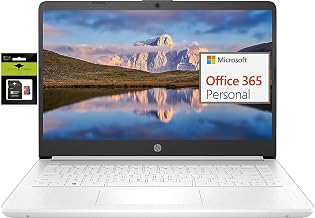
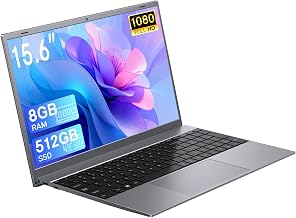
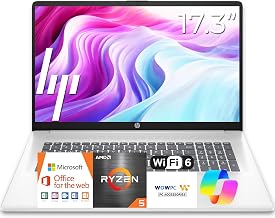
Our top picks



As an Amazon Associate we earn from qualifying purchases at no extra cost to you. Ratings are shown as listed on Amazon.
Quick Recommendations by Maya Workload
| Maya workload | Recommended specification | Best laptop type | Typical budget |
|---|---|---|---|
| Learning, low-poly modeling, basic animation | 8-core CPU, 16–32 GB RAM, RTX-class GPU with 6–8 GB VRAM, 1 TB SSD | Performance laptop | Usually $900–$1,400 |
| Professional modeling and character animation | 8–16-core CPU, 32 GB RAM, GPU with 8–12 GB VRAM, QHD display | Creator or gaming laptop | Usually $1,500–$2,500 |
| Arnold CPU rendering and complex scenes | 12–16-core CPU, 64 GB RAM, 1–2 TB SSD, strong sustained cooling | Mobile workstation | Usually $2,000–$4,000 |
| GPU rendering, large textures, heavy viewport work | High-end GPU with 16 GB or more VRAM, 64 GB RAM, large power adapter | Thick performance laptop | Usually $2,500–$5,000+ |
| Fluid, cloth, and particle simulation | Fast multicore CPU, 64–128 GB RAM, fast SSD, excellent cooling | Upgradeable workstation | Usually $2,500–$5,000+ |
What to Look for in the Best Laptops for Maya
CPU: prioritize sustained performance
Maya uses the CPU heavily for scene evaluation, rigging, dependency-graph updates, some simulation tasks, and Arnold CPU rendering. A recent 8-core processor is a sensible minimum for serious work. A 12- or 16-core mobile CPU is more suitable if you render frequently or run simulations.
Single-core responsiveness still matters. A laptop with fewer, faster cores can feel better during interactive modeling than one with many slower cores. Conversely, a multicore processor can complete CPU rendering and cache generation much faster. Check sustained performance rather than relying only on the processor’s advertised boost speed: thin laptops may reduce power after several minutes of rendering.
Mobile workstations such as the HP ZBook Fury 16 and Dell Precision 7680-class systems are designed for sustained professional workloads. High-performance creator and gaming laptops can offer better speed per dollar, but their professional certification, port selection, and upgrade options vary.
GPU and VRAM: the viewport and rendering limit
A dedicated NVIDIA RTX GPU is the safest general choice for Maya in 2026 because it supports modern viewport features and GPU rendering workflows used by renderers such as Arnold GPU and Redshift. Choose at least 8 GB of VRAM for regular 3D work. Twelve GB is a more comfortable target for detailed characters, large environments, and high-resolution texture sets. Sixteen GB or more is preferable when GPU rendering is central to your workflow.
VRAM is not determined by the final image resolution alone. Textures, geometry, subdivision levels, displacement, motion-blur data, and render buffers all consume memory. A 4K texture can require roughly 64 MB when stored as an uncompressed 8-bit RGBA image, but multiple mip levels, copies, UDIM tiles, and renderer overhead can multiply that requirement. A scene with 50 such texture tiles could therefore need several gigabytes before geometry and buffers are counted.
If a GPU renderer reports out-of-memory errors, reducing output resolution may help, but it does not solve texture-heavy scenes by itself. Use tiled textures, lower texture resolution for previews, instance repeated geometry, and keep render data on the GPU only when the scene fits comfortably in VRAM.
RAM: 32 GB is the practical starting point
Sixteen GB can run Maya for study and moderate projects, but 32 GB is the better minimum for professional modeling and animation. Choose 64 GB for simulations, dense environments, large caches, heavy multitasking, or GPU rendering alongside compositing and reference applications. Systems supporting 128 GB are valuable for effects work and long-term ownership.
RAM pressure appears as swapping: Maya becomes unresponsive, the SSD stays busy, and changing views or caches takes much longer. Two 32 GB memory modules are generally preferable to a single module when the laptop supports dual-channel operation. Check whether the memory is replaceable before buying; many thin laptops have soldered RAM.
Storage: capacity matters more than peak benchmark speed
Install Maya, project files, texture libraries, cache files, and the operating system on an NVMe SSD. A 1 TB drive is the practical minimum, while 2 TB is more comfortable for active projects. Simulation caches can consume tens or hundreds of gigabytes, and a nearly full SSD may perform poorly.
If possible, choose a laptop with two M.2 slots. Keep applications and current projects on one drive and use the second for caches or assets. An external USB4 or Thunderbolt SSD is useful for archives, but active simulation caches are usually more reliable on an internal drive.
Display: resolution, color, and workspace
A 16-inch 2560×1600 display is a strong balance for Maya. It provides more vertical workspace than a standard 16:9 panel without making interface text excessively small. A 4K panel can show sharper textures and more image detail, but it increases power use and may require interface scaling.
For animation and look development, prioritize a calibrated panel with good sRGB or DCI-P3 coverage. OLED displays provide excellent contrast, but long sessions with static interface elements may make a conventional IPS panel a simpler choice. A 120–165 Hz refresh rate makes orbiting and timeline interaction feel smoother, although it is less important than GPU power for heavy scenes.
For a useful bandwidth check, an uncompressed 2560×1600 display at 165 Hz requires approximately 2560 × 1600 × 165 = 676 million pixels per second before blanking and encoding overhead. This is why modern DisplayPort or USB-C display connections are preferable when driving an external high-refresh monitor. The calculation does not mean Maya needs that much rendering power, but it explains why older video outputs can limit monitor choices.
Cooling and portability
Cooling is part of performance. A thin laptop may have an excellent short benchmark result but slow down during a 30-minute Arnold render or a long simulation. Look for a substantial chassis, separate heat pipes or vapor-chamber cooling, multiple exhaust vents, and a power adapter large enough for the CPU and GPU.
For commuting, a 14-inch laptop with an 8–10-core CPU and 8 GB GPU can be a good compromise. For maximum performance, a 16-inch model with a high-power GPU is usually better. Expect a high-performance laptop to provide much less battery life while rendering; the fastest CPU and GPU modes normally require wall power.
Decision Matrix: Which Laptop Class Fits You?
| Your priority | Choose | Compromise to expect |
|---|---|---|
| Portable modeling and animation | 14-inch creator laptop, 32 GB RAM, 8–12 GB VRAM | Lower sustained rendering speed |
| Best viewport performance per dollar | 16-inch performance laptop with a high-power RTX GPU | More weight, fan noise, and charger size |
| CPU Arnold rendering | Mobile workstation with 12–16 CPU cores and 64 GB RAM | Often less GPU performance at the same price |
| GPU rendering and large textures | RTX GPU with 16 GB or more VRAM | High cost and reduced battery life |
| Simulation and effects | Upgradeable workstation with 64–128 GB RAM and two SSD slots | Thicker, heavier chassis |
Recommended Laptop Families and Spec Classes
For a professional workstation, consider systems in the HP ZBook Fury 16, Dell Precision 7680-class, or Lenovo ThinkPad P16-class range, configured with 64 GB RAM, a high-performance RTX professional or equivalent GPU, and a 1–2 TB SSD. These machines are appropriate when certified drivers, upgradeability, and sustained performance matter more than weight.
For a faster value-oriented option, look at 16-inch performance laptops such as the Lenovo Legion Pro 7i-class or ASUS ROG Strix SCAR-class systems. Select the strongest GPU that fits the budget, but verify that the exact configuration includes sufficient VRAM and dual-channel memory. Gaming models often provide excellent viewport performance, although their displays and professional support may be less suited to studio pipelines.
Creator-focused laptops such as the ASUS ProArt Studiobook 16-class systems can be attractive for artists who need a color-focused display, a large touchpad or dial, and strong GPU performance. Confirm the installed RAM, GPU VRAM, and cooling configuration rather than assuming every version has workstation-level specifications.
How to Configure Maya on a New Laptop
- Install the latest stable NVIDIA Studio Driver when reliability matters more than gaming features.
- Set Maya’s viewport to the appropriate modern API, then test your scenes rather than assuming one mode is fastest for every project.
- Use lower-resolution textures and disable unnecessary subdivision during layout and animation.
- Reserve high-quality textures, displacement, motion blur, and final-quality shadows for look development or rendering.
- Place simulation caches on the fastest internal SSD and keep at least 15–20% of that drive free.
- Use the laptop’s performance mode and connect its full-power adapter during long renders or simulations.
- Monitor CPU temperature, GPU temperature, RAM use, and VRAM use during a representative scene; these measurements are more useful than a generic benchmark.
Bottom Line
For most Maya users, the best laptop configuration in 2026 is a 16-inch system with a recent 8-core-or-better CPU, 32 GB of RAM, a dedicated RTX GPU with 8–12 GB of VRAM, a 1 TB NVMe SSD, and a 2560×1600 display. Move to 64 GB RAM and a 12–16-core CPU for simulation or CPU rendering, and choose 16 GB or more of VRAM when GPU rendering and large texture-heavy scenes are central to the job. The right balance depends less on the laptop’s branding than on whether its cooling, memory, and VRAM match the way you use Maya.