Key takeaways
- Refresh rate over resolution: At this budget, a 144Hz 1080p panel will feel dramatically smoother than a 60Hz 1440p one. Prioritize frames per second first; add pixels later when your GPU and wallet allow.
- Check the port, not just the spec sheet: Many budget monitors hit their advertised maximum refresh rate only over DisplayPort, dropping to 60Hz or 75Hz over HDMI. Confirm the port you plan to use supports the speed you’re paying for.
- Panel type sets expectations: IPS gives you the best color and viewing angles, VA delivers deeper blacks and stronger contrast, and TN trades color for speed. None is universally correct — match it to whether you play competitively or for atmosphere.
- Adaptive sync is non-negotiable: FreeSync or G-Sync Compatible support eliminates screen tearing without the input lag penalty of V-Sync. It costs manufacturers almost nothing to include, so treat its absence as a red flag.
- Verify the stand and VESA mount: Budget monitors frequently ship with tilt-only stands. Confirm 75x75mm or 100x100mm VESA compatibility so you can add an inexpensive arm rather than replacing the whole display.
What's inside
Shopping for a gaming monitor under $200 is harder than it looks. The sub-$200 tier is where marketing language works overtime: “gaming” gets stamped on panels with sluggish response times, “HDR” appears on displays that can’t get bright enough to matter, and refresh rate claims sometimes only apply over one specific port with one specific cable. Meanwhile the specs that genuinely affect how a game feels — panel type, real-world response time, adaptive sync support, and honest color coverage — get buried at the bottom of the listing.
This guide cuts through that. Every monitor below realistically sells at or under $200, and each one earns its place by doing something specific well rather than by claiming to do everything. We’ve weighted refresh rate and input latency most heavily, since those are what you actually feel in a competitive shooter, followed by panel quality and connectivity. Below you’ll find our picks, a short buying checklist, individual reviews, and answers to the questions that come up most often at this price.
As an Amazon Associate we earn from qualifying purchases.








⚡ Save on Your Next PC — Amazon Prime
Prime members get fast free shipping on the systems above, plus early access to Prime Day & Black Friday PC deals. New members get a 30-day free trial.
Watch: Best Gaming Monitor Under $200 — Video Review
How to Choose Gaming Monitor Under $200
- Refresh rate over resolution: At this budget, a 144Hz 1080p panel will feel dramatically smoother than a 60Hz 1440p one. Prioritize frames per second first; add pixels later when your GPU and wallet allow.
- Check the port, not just the spec sheet: Many budget monitors hit their advertised maximum refresh rate only over DisplayPort, dropping to 60Hz or 75Hz over HDMI. Confirm the port you plan to use supports the speed you’re paying for.
- Panel type sets expectations: IPS gives you the best color and viewing angles, VA delivers deeper blacks and stronger contrast, and TN trades color for speed. None is universally correct — match it to whether you play competitively or for atmosphere.
- Adaptive sync is non-negotiable: FreeSync or G-Sync Compatible support eliminates screen tearing without the input lag penalty of V-Sync. It costs manufacturers almost nothing to include, so treat its absence as a red flag.
- Verify the stand and VESA mount: Budget monitors frequently ship with tilt-only stands. Confirm 75x75mm or 100x100mm VESA compatibility so you can add an inexpensive arm rather than replacing the whole display.
The Best Picks Reviewed
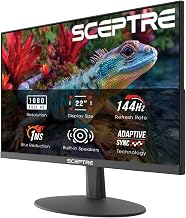
Sceptre 22-Inch 144Hz (E225W-FW144)
This is the most straightforward path to high-refresh gaming on a tight budget, delivering up to 144Hz at 1080p with both HDMI and DisplayPort inputs. The 22-inch size keeps pixel density sharp and the whole screen inside your field of view — a genuine advantage in competitive shooters — while the built-in speakers save you from an immediate accessory purchase.
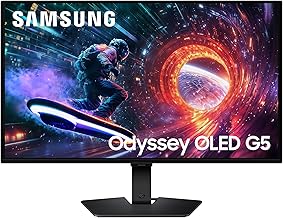
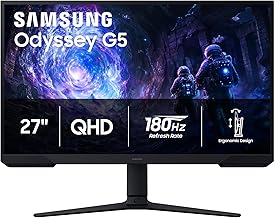
Samsung 27″ Odyssey G5 (G51F)
The G51F is the standout here because it brings genuine 1440p resolution and Samsung’s panel engineering into a price bracket that usually can’t support either. If your GPU can drive QHD, the jump in image clarity and desktop workspace over any 1080p option on this list is immediately obvious, making it the best long-term buy of the group.
ArcticPro 22 Inch 144Hz
ArcticPro pairs a 144Hz refresh rate with 105% sRGB coverage, which is an unusually honest color spec at this price and means games and photos both look properly saturated rather than washed out. It’s the pick for anyone who wants competitive-grade smoothness but also edits the occasional video or image.
Sceptre 27-inch Prime (E275W-FW100T)
If screen real estate matters more to you than raw frame rate, this 27-inch panel offers 100Hz, a 1ms response time, and 100% sRGB coverage in a frameless design that suits multi-monitor setups. Dual HDMI plus DisplayPort means a console and a PC can stay permanently connected without cable swapping.
Philips 221V8LB
The Philips is the sensible, no-drama option: a 100Hz VA panel with flicker-free backlighting and VESA mounting, built by a manufacturer with a long track record in display quality control. VA contrast makes dark game environments considerably more convincing than budget IPS panels manage, and it doubles as an excellent everyday work monitor.
Frequently Asked Questions
Is 144Hz worth it if my GPU can’t hit 144fps?
Yes. A high-refresh panel with FreeSync enabled will still deliver smoother, tear-free motion at 90 or 110fps than a 60Hz display can. You also gain headroom for future GPU upgrades without needing a new monitor.
Should I choose 1080p or 1440p under $200?
Choose 1080p if you play competitive multiplayer or have an entry-level GPU. Choose 1440p — realistically only via the Odyssey G51F at this budget — if you play single-player titles at moderate frame rates or use the monitor heavily for work.
Do curved monitors actually help in games?
On a 24-inch panel like the Sceptre C248W, the curve is subtle and its benefit is mostly comfort during long sessions rather than genuine immersion. Curvature becomes meaningfully useful at 32 inches and above, so don’t pay a premium for it here.
Are built-in speakers good enough for gaming?
They are adequate for menus, podcasts, and background audio, but they lack the bass and positional accuracy that competitive play depends on. Treat them as a convenient fallback, not a replacement for headphones.
Final Thoughts
For most buyers, the Samsung Odyssey G5 (G51F) is the smartest purchase on this list — it’s the only pick delivering true 1440p at this price, and that resolution advantage will still matter two GPU upgrades from now. If competitive frame rates are the priority, the Sceptre E225W-FW144 gives you a legitimate 144Hz panel with DisplayPort for less money than almost anything else on the market, while the Philips 221V8LB is the pick for anyone who wants VA contrast and reliable build quality in a monitor that works equally well for gaming and daily desk duty.