Key takeaways
- Resolution: For dual setups, matching resolutions is generally recommended for a seamless visual experience.
- Refresh Rate: Aim for at least 75Hz for smoother motion, with 144Hz and above being ideal for fast-paced competitive gaming.
- Response Time: Lower is better (1ms is excellent) to minimize motion blur and ghosting.
- Panel Type: IPS panels offer superior color accuracy and viewing angles, while TN panels are often faster but can sacrifice color quality. VA panels strike a balance.
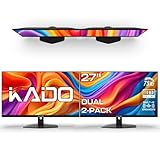
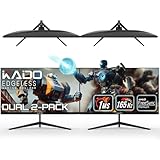
- Curved vs. Flat: Curved monitors, like the Kado 2-Pack Dual 24″ Curved 1500R 1920×1080 75Hz FHD Computer Monitor or the larger Kado Dual Monitor 2-Pack 27″ Curved 1500R 1920×1080 75Hz Computer Monitor, can enhance immersion by wrapping the display around your field of view. Flat screens, such as the Kado 2-Pack Dual 22″ Flat Screen 1920×1080 75Hz FHD Computer Monitor, offer a more traditional and often more affordable option.
- Size: Consider the physical space you have available and your preferred viewing distance. 24-inch and 27-inch monitors are popular choices for dual setups.
What's inside
Stepping up your gaming setup is an exciting endeavor, and for many, the ultimate upgrade involves embracing the immersive world of dual monitors. Gone are the days when a single screen was the standard; in 2026, dual monitor gaming offers unparalleled advantages in both functionality and sheer spectacle. Whether you’re looking to expand your battlefield view, streamline your multitasking during intense sessions, or simply enjoy a more dynamic and engaging visual experience, this guide will walk you through everything you need to know to set up dual monitors for gaming.
We’ll cover the hardware considerations, the essential setup steps, and some crucial software tweaks to ensure your dual monitor gaming experience is as smooth and visually stunning as possible. Get ready to transform your gaming rig and unlock a new dimension of play.
As an Amazon Associate we earn from qualifying purchases.



⚡ Save on Your Next PC — Amazon Prime
Prime members get fast free shipping on the systems above, plus early access to Prime Day & Black Friday PC deals. New members get a 30-day free trial.
Watch: How to Set Up Dual Monitors for Gaming — Video Review
Choosing the Right Monitors
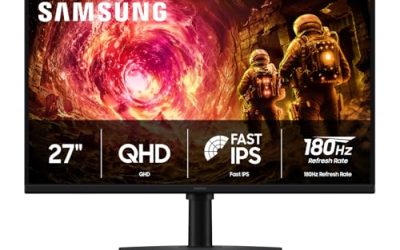
The foundation of any dual monitor setup is, of course, the monitors themselves. For gaming, key specifications to consider include resolution, refresh rate, response time, and panel type. In 2026, 1920×1080 (Full HD) resolution remains a solid choice for many gamers, especially when paired with higher refresh rates. For those with more powerful GPUs, 2560×1440 (QHD) or even 3840×2160 (4K) can provide incredible detail, though they demand more processing power.
- Resolution: For dual setups, matching resolutions is generally recommended for a seamless visual experience.
- Refresh Rate: Aim for at least 75Hz for smoother motion, with 144Hz and above being ideal for fast-paced competitive gaming.
- Response Time: Lower is better (1ms is excellent) to minimize motion blur and ghosting.
- Panel Type: IPS panels offer superior color accuracy and viewing angles, while TN panels are often faster but can sacrifice color quality. VA panels strike a balance.
- Curved vs. Flat: Curved monitors, like the Kado 2-Pack Dual 24″ Curved 1500R 1920×1080 75Hz FHD Computer Monitor or the larger Kado Dual Monitor 2-Pack 27″ Curved 1500R 1920×1080 75Hz Computer Monitor, can enhance immersion by wrapping the display around your field of view. Flat screens, such as the Kado 2-Pack Dual 22″ Flat Screen 1920×1080 75Hz FHD Computer Monitor, offer a more traditional and often more affordable option.
- Size: Consider the physical space you have available and your preferred viewing distance. 24-inch and 27-inch monitors are popular choices for dual setups.
Connecting Your Monitors
Connecting your dual monitors involves ensuring your graphics card has enough output ports and then physically linking the displays to your PC. Most modern graphics cards come equipped with multiple display outputs, typically HDMI and DisplayPort. DisplayPort is generally preferred for higher resolutions and refresh rates.
- Identify Your Ports: Check the back of your graphics card for available HDMI and DisplayPort connections.
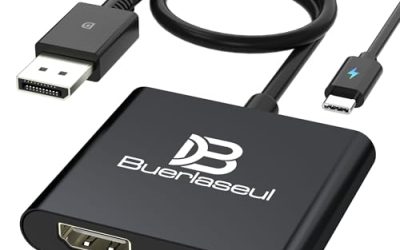
- Choose the Right Cables: Ensure you have the appropriate cables (HDMI to HDMI, DisplayPort to DisplayPort, or a compatible adapter if needed) for each monitor. For 75Hz and above, using DisplayPort is highly recommended.
- Connect the Monitors: Plug one end of the cable into the monitor and the other into the corresponding port on your graphics card. Do not connect monitors to the motherboard’s integrated graphics ports if you have a dedicated graphics card.
- Power Up: Connect the power cables to each monitor and turn them on.
Setting Up in Windows
Once your monitors are physically connected, Windows will guide you through the software configuration. This is where you tell your system how to utilize the two displays.
- Detect Displays: Right-click on your desktop and select “Display settings.” Windows should automatically detect both monitors. If not, click the “Detect” button.
- Arrange Displays: In the “Display settings” window, you’ll see representations of your monitors. You can click and drag these icons to match their physical arrangement on your desk. This is crucial for accurate mouse movement between screens.
- Set Primary Display: Select the monitor you want as your primary display (where the taskbar and icons will appear by default). Scroll down and check the box that says “Make this my main display.”
- Display Mode: Under the “Multiple displays” dropdown, choose “Extend these displays.” This is the setting you’ll need for gaming, allowing you to span games across both screens or use one for gameplay and the other for other applications. Avoid “Duplicate these displays,” which simply mirrors the same image.
- Resolution and Refresh Rate: For each monitor, ensure the correct resolution and refresh rate are selected. It’s generally best to set them to their native resolution and the highest supported refresh rate.
Configuring for Gaming
While Windows handles the basic setup, optimizing for gaming involves a few extra steps, especially if you intend to “span” games across both monitors (often referred to as NVIDIA Surround or AMD Eyefinity).
- Graphics Card Control Panel: This is where the magic happens for spanning.
- NVIDIA: Open the NVIDIA Control Panel, navigate to “Configure Surround, PhysX,” and follow the on-screen prompts to create a Surround display group.
- AMD: Open the AMD Radeon Software, go to “Display,” and enable “AMD Eyefinity.” Configure your display group, ensuring you set the correct bezel correction if necessary to account for the gap between your monitors.
- In-Game Settings: Within your game’s graphics settings, you’ll need to select the appropriate resolution that matches your spanned display. For example, if you have two 1920×1080 monitors side-by-side, your spanned resolution will be 3840×1080. Adjust other graphics settings as needed for performance.
- Alternative Usage: Many gamers prefer to keep their primary monitor for gameplay and use the secondary monitor for other tasks like Discord, Twitch streams, system monitoring, or browsing. In this scenario, you don’t need to use NVIDIA Surround or AMD Eyefinity. Simply ensure your game is set to full screen or borderless windowed on your primary monitor.
Tips for Dual Monitor Gaming
- Ergonomics: Position your monitors at a comfortable viewing angle. For curved monitors like the Kado 2-Pack Dual 27″ Curved 1500R 1920×1080 75Hz FHD Computer Monitor, ensure they are close enough to create a continuous curve.
- Desk Space: Dual monitors can take up significant desk real estate. Consider a monitor arm to free up space and allow for more flexible positioning.
- Performance Impact: Running games across two monitors (spanning) will demand more from your GPU than running on a single display. Be prepared for a potential performance hit and adjust in-game settings accordingly.
- Bezel Correction: If spanning games, especially on flat screens, you might need to enable bezel correction in your graphics driver’s control panel to compensate for the physical gap between the monitors.
Frequently Asked Questions
Do I need a powerful graphics card for dual monitors?
For basic dual monitor use (extending your desktop), a moderately powerful graphics card is sufficient. However, for gaming across dual monitors (spanning), a more robust GPU is highly recommended to maintain smooth frame rates at higher resolutions.
Can I use monitors with different resolutions?
Yes, you can use monitors with different resolutions. However, it’s generally not recommended for gaming, as it can lead to inconsistencies and require more complex configuration. For standard desktop use, Windows will adapt, but mouse movement might feel less intuitive.
Which is better for gaming: curved or flat monitors?
For immersion, especially in racing or flight simulators, curved monitors like the Kado 2-Pack Dual 27″ Flat Screen 1920×1080 75Hz FHD Computer Monitor can offer a more enveloping experience. Flat screens are more traditional and often more budget-friendly, with no perceived disadvantage in most game genres.
How do I prevent games from going to the wrong monitor?
If you’re not spanning games, ensure your game is set to “Fullscreen” or “Borderless Windowed” on your primary gaming monitor. If it still appears on the secondary monitor, you may need to adjust display settings in Windows or your game’s configuration files.
Conclusion
Setting up dual monitors for gaming is a rewarding upgrade that significantly enhances your gaming experience. By carefully selecting your hardware, correctly connecting your displays, and diligently configuring your system and games, you can unlock a new level of immersion and productivity. Whether you’re diving into expansive open worlds or dominating the competitive scene, a dual monitor setup in 2026 provides a tangible advantage and a visually spectacular environment for all your gaming endeavors.