Key takeaways
- Unplug at the wall and reseat the card until the latch clicks.
- Use dedicated PCIe cables, not one split lead, for cards over 250 watts.
- Plug your monitor into the GPU’s ports, never the motherboard’s.
What's inside
- Watch: Why Is My GPU Not Being Detected? (2026 Fixes) — Video Review
- Reseat the Card and Confirm Power
- Check the Monitor Cable and Output Port
- Clear the BIOS and Set the Right Primary Display
- Fix the Driver State in Windows
- Isolate the Card From the Slot With Diagnostics
- Tips
- Frequently Asked Questions
- Conclusion
- Related Articles
You finish a build or wake your PC from sleep and the screen is dead, or Device Manager shows a generic Microsoft Basic Display Adapter where your graphics card should be. A GPU that will not detect is alarming, but in the vast majority of cases the card is fine and the fault is a loose seat, a power lead, a BIOS setting, or a driver that lost its footing. Panic buying a replacement card is almost always premature.
- Watch: Why Is My GPU Not Being Detected? (2026 Fixes) — Video Review
- Reseat the Card and Confirm Power
- Check the Monitor Cable and Output Port
- Clear the BIOS and Set the Right Primary Display
- Fix the Driver State in Windows
- Isolate the Card From the Slot With Diagnostics
- Tips
- Frequently Asked Questions
- Conclusion
- Related Articles
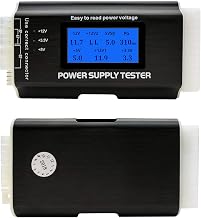
This 2026 guide runs the fixes in order of likelihood and effort, from the thirty-second reseat that solves most cases to the diagnostic tools that confirm whether the slot, the card, or the software is truly at fault. A PCIe diagnostic post-test card or a graphics card tester can tell you in minutes whether the slot is delivering signal, which turns guesswork into a definite answer before you spend anything.
As an Amazon Associate we earn from qualifying purchases.


⚡ Save on Your Next PC — Amazon Prime
Prime members get fast free shipping on the systems above, plus early access to Prime Day & Black Friday PC deals. New members get a 30-day free trial.
Watch: Why Is My GPU Not Being Detected? (2026 Fixes) — Video Review
Reseat the Card and Confirm Power
Start with the physical basics because they cause more no-detect cases than everything else combined. Power down fully, unplug the wall cord, then remove and firmly reseat the GPU until the slot latch clicks. Check that every supplemental PCIe power cable is fully seated at both the card and the PSU, and that you are using separate cables rather than a single daisy-chained lead on a high-draw card. A card that spins its fans but gives no display is very often a power-connector problem, not a dead GPU.
- Unplug at the wall and reseat the card until the latch clicks.
- Use dedicated PCIe cables, not one split lead, for cards over 250 watts.
- Plug your monitor into the GPU’s ports, never the motherboard’s.
Check the Monitor Cable and Output Port
It sounds obvious, but plugging the display into the motherboard’s video output instead of the graphics card is one of the most common reasons a new builder sees no signal. Connect the monitor directly to the GPU, try a different cable and a different port (swap HDMI for DisplayPort), and confirm the monitor is on the correct input. If you have onboard graphics, a spare cable into the motherboard can at least get you into Windows to troubleshoot the card from there.
Clear the BIOS and Set the Right Primary Display
If the hardware is seated correctly, the fault often lives in firmware. Clear CMOS by removing the battery for a minute or using the board’s reset jumper, which wipes any bad overclock or display setting. Once in BIOS, set the primary graphics adapter to PCIe rather than the integrated GPU, enable Resizable BAR and Above 4G Decoding if your card supports them, and update to the latest BIOS if your CPU or GPU generation is newer than the board shipped with.
Fix the Driver State in Windows
When the card shows as an unknown or basic adapter inside Windows, the driver is the problem. Boot into Safe Mode, run Display Driver Uninstaller to strip every trace of the old graphics driver, reboot, and install a fresh package downloaded straight from NVIDIA, AMD, or Intel. A card sagging in its slot over time can also break contact; an anti-sag support bracket keeps a heavy modern GPU level so the connection stays solid and the detection issue does not return.
Isolate the Card From the Slot With Diagnostics
If none of the above works, you need to know whether the card or the slot is dead. Move the GPU to a second PCIe x16 slot; if it detects there, the original slot is faulty. Test the card in another PC if you have one. When you have no spare system, a motherboard post-test diagnostic card reads the boot codes and shows exactly where the process halts, and a dedicated PCIe slot tester confirms whether the slot is providing power and data. These tools remove the ambiguity that makes GPU faults so frustrating.
Tips
- Test one variable at a time so you know which change fixed it.
- Fit an anti-sag bracket on heavy cards to prevent slot contact issues.
- Keep a cheap post-code card in your kit; it pays for itself on the first no-boot.
- After any driver fix, verify the card in a demanding game to confirm stability, not just detection.
Frequently Asked Questions
Why do my GPU fans spin but there is no display?
Spinning fans only mean the card has power, not that it is initializing. This pattern usually points to a monitor plugged into the wrong port, a missing or half-seated PCIe power cable, or a BIOS set to the integrated GPU. Work through those three before suspecting the card itself.
Could a BIOS update really fix detection?
Yes, frequently. When a card or CPU is newer than the motherboard’s shipping firmware, the board may not recognize it until updated. Flash the latest BIOS using a known-working display output or the board’s flashback feature, then recheck.
How do I know if the PCIe slot is dead?
Move the card to another x16 slot. If it detects there, the first slot is the problem. If you have no second slot, a PCIe slot tester or a post-diagnostic card will show whether the slot delivers signal, isolating the fault to the board rather than the card.
Does card sag cause detection problems?
Over time, yes. A heavy GPU drooping in its slot can lose full contact with the connector, causing intermittent or lost detection. A support bracket keeps the card level and the contact solid, which prevents the problem from recurring.
Conclusion
A GPU that will not detect is far more often a seating, cabling, or firmware issue than a dead card. Reseat and repower first, verify the monitor connection, clear the BIOS and point it at the PCIe slot, then clean-install the driver. If the card still refuses to show, diagnostic tools will tell you definitively whether the slot or the card is at fault, so you replace the right part rather than guessing with your wallet.