Key takeaways
- ATX Power Connectors: Your motherboard requires a 20+4 pin ATX power connector and often an additional 4-pin or 8-pin EPS (CPU power) connector. Ensure these are firmly plugged into the motherboard. A loose CPU power cable is a very common reason for no POST (Power-On Self-Test).
- GPU Power Connectors: Modern graphics cards, especially high-end ones, require dedicated PCIe power cables from the PSU. These are usually 6-pin or 8-pin connectors. Make sure they are fully inserted into both the GPU and the PSU (if your PSU has modular cables).
- SATA/Molex Power: While less likely to prevent boot entirely, ensure your SSDs, HDDs, and any other peripherals are receiving power.
What's inside
So, you’ve just finished assembling your dream gaming rig, a beast of a machine capable of rendering the most demanding titles at buttery-smooth frame rates. You hit the power button, anticipation high, only to be met with… silence. Or perhaps a flicker of a light, then nothing. Frustrating, right? Don’t panic. A gaming PC that won’t turn on is a common issue, and more often than not, it’s a simple fix. This guide will walk you through the most likely culprits and how to diagnose and resolve them, getting you back into the game in no time.
Whether you’re a seasoned builder or embarking on your first PC build with resources like Build Your Ultimate Gaming PC (2025/2026 Edition) or How to Build a Gaming PC for Beginners, understanding these troubleshooting steps is crucial. We’ll cover everything from the most basic power connections to more complex component issues.
As an Amazon Associate we earn from qualifying purchases.




⚡ Save on Your Next PC — Amazon Prime
Prime members get fast free shipping on the systems above, plus early access to Prime Day & Black Friday PC deals. New members get a 30-day free trial.
Watch: Why Won’t My Gaming PC Turn On? (2026 Fixes) — Video Review
The Power Button Itself
It sounds obvious, but let’s start with the absolute basics. Is the power supply unit (PSU) switch on the back of your PC flipped to the ‘I’ (on) position? Many PSUs have a physical toggle switch. Also, ensure the power cable is firmly seated in both the PSU and the wall outlet (or surge protector). Try a different power cable if you have one available. If you’re using a surge protector or power strip, test the outlet directly by plugging in a known working device, like a lamp or monitor. Sometimes, the issue isn’t with the PC at all.
Internal Power Connections
This is where many DIY builders stumble, especially on their first go. Inside your case, several components need power from the PSU, and if any of these are loose or incorrectly seated, your PC won’t boot. The most critical connections are:
- ATX Power Connectors: Your motherboard requires a 20+4 pin ATX power connector and often an additional 4-pin or 8-pin EPS (CPU power) connector. Ensure these are firmly plugged into the motherboard. A loose CPU power cable is a very common reason for no POST (Power-On Self-Test).
- GPU Power Connectors: Modern graphics cards, especially high-end ones, require dedicated PCIe power cables from the PSU. These are usually 6-pin or 8-pin connectors. Make sure they are fully inserted into both the GPU and the PSU (if your PSU has modular cables).
- SATA/Molex Power: While less likely to prevent boot entirely, ensure your SSDs, HDDs, and any other peripherals are receiving power.
Refer to your motherboard and PSU manuals for the exact location and type of connectors. Resources like Build Your Own Gaming PC: The step-by-step manual are invaluable here.
The RAM: A Frequent Offender
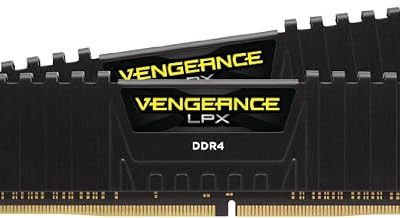
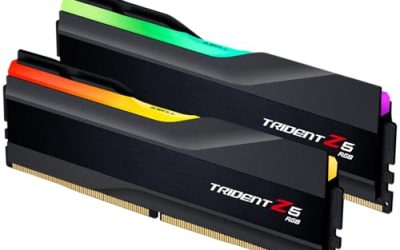
Improperly seated RAM modules are another prime suspect for a PC that powers on but doesn’t display anything, or doesn’t POST at all. RAM slots can be finicky, and the clips on the sides need to be fully engaged. If you have multiple RAM sticks, try booting with just one stick installed in the primary slot (check your motherboard manual for which slot that is). Test each stick individually in the primary slot. If the PC boots with one stick but not others, you may have a faulty RAM module. Conversely, if it boots with a different stick, the original one might be incompatible or damaged.
The Graphics Card (GPU)
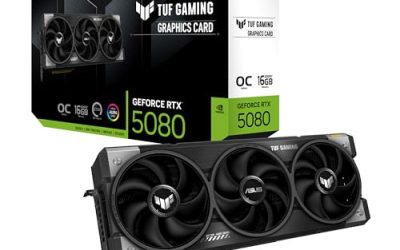
While some budget systems, like the Pre-Built PC, i5 CPU Up to 3.6GHz, Integrated Graphics Only, 256 GB M.2, 8 GB RAM Cheap Budget Gaming PC, might rely on integrated graphics, most gaming PCs utilize a dedicated GPU. Ensure your graphics card is fully seated in its PCIe slot. The retention clip at the end of the slot should click into place. Double-check that the PCIe power cables are connected if your GPU requires them. If you suspect your GPU might be the issue, and your CPU has integrated graphics, you can try booting without the dedicated GPU installed to see if the system POSTs using the motherboard’s display output.
Loose Front Panel Connectors
The small wires connecting your case’s front panel buttons and LEDs to the motherboard can be easily overlooked. The power button connector, in particular, needs to be correctly attached to the motherboard’s front panel header. These pins are often labeled ‘PWRSW’ or similar. If these are loose or incorrectly wired, your power button won’t do anything. Referencing your motherboard manual is crucial here; consult guides like Your Guide to Building Custom PCs for Gaming for detailed diagrams.
Tips for Diagnosis
- Listen for Beep Codes: Some motherboards emit a series of beeps to indicate specific hardware errors. Consult your motherboard manual to interpret these codes.
- Check for POST Debug LEDs: Many motherboards have small LEDs that light up sequentially during the boot process. If the PC gets stuck on a particular LED, it points to that component.
- Reseat Everything: Sometimes, simply removing and reinserting components like RAM, GPU, and all power cables can resolve connection issues.
- Simplify the Build: For troubleshooting, disconnect any non-essential components (extra drives, RGB strips, etc.) and try to boot with the absolute minimum required: CPU, cooler, one RAM stick, and motherboard.
Frequently Asked Questions
What if there are lights but no display?
This often indicates the PC is receiving power but failing to POST. The most common culprits are RAM not being seated correctly, a problem with the GPU, or an issue with the CPU. Ensure all power connections to the motherboard and GPU are secure.
My PC powers on for a second and then shuts off. What could it be?
This can sometimes be a safety mechanism. It might be a short circuit, an improperly seated CPU cooler causing overheating, or a faulty PSU. Double-check all internal wiring for any stray metal components touching the motherboard.
Could a faulty power supply be the cause?
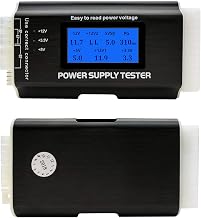
Absolutely. A failing PSU might not provide enough stable power to boot the system. If you’ve exhausted other options, consider testing with a known good PSU, or even trying a PSU calculator online to ensure yours is adequately rated for your components.
What’s the first thing I should check?
Always start with the external power connection and the PSU switch. Then, move to the internal ATX and CPU power connectors on the motherboard, as these are fundamental for the system to even attempt to boot.
Conclusion
Troubleshooting a PC that won’t turn on can feel daunting, but by systematically working through these common issues, you’ll likely pinpoint the problem. Remember to consult your component manuals and, if you’re still struggling, don’t hesitate to seek help from online communities or a professional. With a bit of patience and a methodical approach, you’ll have your gaming rig roaring back to life in no time. Happy gaming!