Key takeaways
- 1920×1080 at 360 Hz needs about 17.9 Gbit/s.
- 2560×1440 at 165 Hz needs about 14.6 Gbit/s.
- 2560×1440 at 240 Hz needs about 21.2 Gbit/s, which fits in 1.4’s usable rate but gets closer to the ceiling once overhead is added.
- 3840×2160 at 60 Hz needs about 11.9 Gbit/s.
- 3840×2160 at 144 Hz with 10-bit color (30 bits per pixel) needs about 35.8 Gbit/s, more than 1.4’s usable rate, so compression or a faster link is required.
For most gaming setups, DisplayPort 1.4 is enough: it handles 1440p at very high refresh rates and 4K at high refresh rates when Display Stream Compression (DSC) is used, and you only need DisplayPort 2.1 if you plan to run a 4K or ultrawide monitor at very high refresh rates with a graphics card and monitor that both list the newer standard. The version that matters is the lowest one in the chain of graphics card, cable and monitor.
Our top picks


As an Amazon Associate we earn from qualifying purchases at no extra cost to you.
Quick Answer by Monitor Type
| Monitor | DisplayPort version that is enough | Note |
|---|---|---|
| 1080p up to 360 Hz | 1.2 or 1.4 | Plenty of headroom |
| 1440p up to about 165 Hz | 1.2 or 1.4 | Comfortable on 1.4 |
| 1440p at 240 Hz or higher | 1.4 (DSC may be used by some monitors) | Exact modes depend on the monitor |
| 3440×1440 ultrawide, high refresh | 1.4 | Monitor lists its maximum over each port |
| 4K at 60 Hz | 1.2 or 1.4 | No compression needed |
| 4K at 120 to 144 Hz | 1.4 with DSC, or 2.1 | Compression usually involved |
| 4K at 240 Hz, 5120×1440 at 240 Hz | 2.1 or 1.4 with DSC | Newer standard gives more room |
| 8K | 2.1 | Rarely a gaming target |
The table is guidance. The monitor’s specification sheet states which modes it accepts over each input, and that is the final word for your setup.
What Each Version Offers
Reference specifications list the following figures. DisplayPort 1.2 provides 21.6 Gbit/s of link bandwidth, with about 17.28 Gbit/s usable. DisplayPort 1.4 provides 32.4 Gbit/s of link bandwidth, with about 25.92 Gbit/s usable, and adds DSC 1.2. DisplayPort 2.0 and 2.1 introduce UHBR link rates: UHBR 10 at 40 Gbit/s (about 38.69 usable), UHBR 13.5 at 54 Gbit/s (about 52.22 usable) and UHBR 20 at 80 Gbit/s (about 77.37 usable). Adaptive-Sync, the base for G-Sync Compatible and FreeSync, arrived with DisplayPort 1.2a as an optional feature, and DisplayPort 2.x keeps it optional.
Note that “DisplayPort 2.1” on a spec sheet does not always mean the top speed. The monitor or card may support only UHBR 10 or UHBR 13.5, not UHBR 20. Makers list the link rate, so look for the exact UHBR mode instead of just the version number.
Why Version Matters: The Simple Math
Video bandwidth is roughly resolution times refresh rate times color depth, plus a bit more for timing overhead. A rough check before overhead, for 8-bit color (24 bits per pixel), gives:
- 1920×1080 at 360 Hz needs about 17.9 Gbit/s.
- 2560×1440 at 165 Hz needs about 14.6 Gbit/s.
- 2560×1440 at 240 Hz needs about 21.2 Gbit/s, which fits in 1.4’s usable rate but gets closer to the ceiling once overhead is added.
- 3840×2160 at 60 Hz needs about 11.9 Gbit/s.
- 3840×2160 at 144 Hz with 10-bit color (30 bits per pixel) needs about 35.8 Gbit/s, more than 1.4’s usable rate, so compression or a faster link is required.
These are arithmetic estimates, not measured results, and real signals add overhead. They show why 1.4 is fine for most 1440p and 1080p gaming, and why 4K at high refresh rates needs DSC or DisplayPort 2.1.
What DSC Does
Display Stream Compression is a compression method in the DisplayPort 1.4 standard and later. The VESA description calls it visually lossless, meaning it is designed so the compression is not normally noticeable. It lets a 1.4 link carry modes it could not carry uncompressed. Practical downsides reported by reviewers include longer mode switches or black screens when changing resolution, limits on running multiple high-resolution monitors from one card, and in some cases limits on features such as certain scaling modes. DSC support depends on both the graphics card and the monitor, and a few monitors only use it on some inputs.
When You Need DisplayPort 2.1
- You want 4K at 240 Hz or similar without relying on heavy compression.
- You use a super ultrawide at very high refresh rates and want maximum headroom.
- You run multiple high-resolution high-refresh displays from one graphics card.
- You want to keep a monitor for several GPU generations.
Both ends must support it. The graphics card must list DisplayPort 2.1 outputs and the monitor must accept the matching link rate. Some current cards offer a newer standard than others and not all at UHBR 20, so check the card’s maker listing for the specific link rate.
Decision Table
| Your plan | Choose |
|---|---|
| Esports at 1080p or 1440p | DisplayPort 1.4 is enough |
| Balanced 1440p high-refresh gaming | 1.4 |
| 4K at 60 Hz for console-style play | 1.4 or HDMI 2.0 or higher |
| 4K at 120 Hz or more, with a card that supports DSC | 1.4 with DSC works; 2.1 gives headroom |
| Future-proofing a premium build | Pick a card and monitor that both list DisplayPort 2.1 with the link rate you want |
| Older graphics card with only 1.2 | Fine up to about 1440p at moderate refresh rates; check the monitor’s modes |
Cables, HDMI and Other Common Mistakes
- Reading only the monitor’s box. The card, cable and monitor all limit the mode.
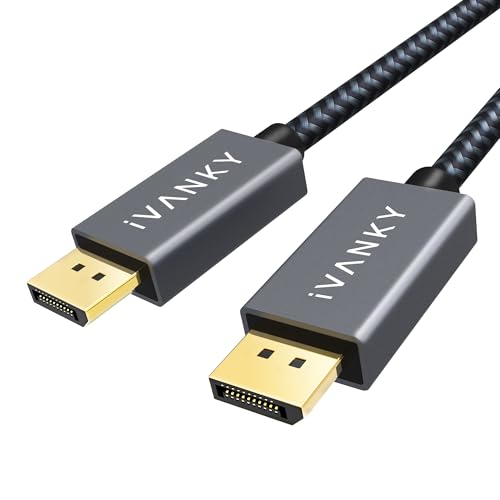
- Using a cable of unknown rating. For 1.4 modes look for a certified cable, and for UHBR modes look for a cable certified for the link rate you want. Long cables can drop out at high rates.
- Assuming 2.1 equals the top speed. Check whether it is UHBR 10, 13.5 or 20.
- Forgetting Adaptive-Sync. Variable refresh rate is an optional feature; confirm the monitor lists it.
- Overlooking HDMI. HDMI 2.1 can carry high-refresh 4K as well, and some monitors give their best mode on HDMI. The manual lists the per-port limits.
- Plugging into the motherboard. Desktop video should go to the graphics card, not the motherboard outputs, unless you use integrated graphics.
How to Find Your Own Limits
- Look up the monitor’s specification page for the maximum resolution and refresh rate on DisplayPort, and note the DisplayPort version and any DSC mention.
- Look up the graphics card’s page for its DisplayPort version and link rate.
- Match the lower of the two against the mode you want using the table above.
- Use a cable certified for that mode.
- In Windows display settings, open advanced display settings and choose the refresh rate. If the mode is missing, the cable, version or DSC support is the likely limit.
Frequently Asked Questions
Is DisplayPort 1.4 good enough for 1440p 240 Hz?
Generally yes. The arithmetic puts 1440p at 240 Hz inside what 1.4 can carry, and many monitors that offer the mode list DisplayPort 1.4. The monitor’s specification sheet shows whether it needs DSC for its top mode.
Do I need DisplayPort 2.1 for 4K gaming?
Not always. 4K at 60 Hz works on 1.2 or 1.4, and 4K at higher refresh rates works on 1.4 with DSC. DisplayPort 2.1 adds headroom for very high refresh rates and reduces the need for compression.
Is DisplayPort 2.1 backward compatible?
Yes. Newer DisplayPort ports work with older cables and devices, running at the speed of the weakest part in the chain. You can connect a 1.4 monitor to a 2.1 card and it will run at 1.4 speeds.
Does an older DisplayPort cable limit my monitor?
It can, particularly for the faster modes. Use a cable certified for the version and link rate you need, since cheap or very long cables are a common reason a high refresh rate option does not appear.
Is DisplayPort better than HDMI for gaming?
Both can work well. DisplayPort is common on PC monitors and well supported for variable refresh rate, while HDMI 2.1 is important for consoles. Check each port’s limits in the monitor manual.
Does DSC reduce image quality?
It is described as visually lossless, so most people do not notice it in games. Some users report quirks such as slow mode changes, so it is worth knowing if your monitor uses it.
FAQ
Is DisplayPort 1.4 good enough for 1440p 240 Hz?
Do I need DisplayPort 2.1 for 4K gaming?
Is DisplayPort 2.1 backward compatible?
Does an older DisplayPort cable limit my monitor?
Is DisplayPort better than HDMI for gaming?
Does DSC reduce image quality?
More from Amazon
Programs that pair well with the guide above. Offers and eligibility are set by Amazon and may change.
Free shipping on eligible items, Prime Video and more. Eligible new members can start with a free trial.
Start a Prime free trialAd-free music streaming. Eligible new subscribers can start with a free trial.
Try Music Unlimited freeA Prime membership for ages 18-24 with a trial period. Eligibility is set by Amazon.
See Prime for Young AdultsAudiobooks and podcasts to listen to on the go. Eligible new members can start with a free trial.
Try Audible freeAs an Amazon Associate we earn from qualifying purchases.