Key takeaways
- Mouse Smoothing and Mouse Acceleration: Off. Open Settings, go to the Keyboard tab, choose the Combat sub-tab and scroll to the Mouse section. These toggles arrived with the Season 1 patch in January 2025 and now default to off, but check them, especially if you play on an older profile.
- Remove old config edits. If you added lines to GameUserSettings.ini before the toggles existed, delete them. Some players got an anti-cheat warning from the edited file, and verifying the game files in Steam restores the original.
- Polling rate: 1000 Hz reports every 1 ms. Rates of 4000–8000 Hz shave off fractions of a millisecond more but use extra CPU time, and Rivals already loads the CPU heavily in team fights. Use them only on a strong processor.
- Windows: turn off Enhance pointer precision, the Windows form of mouse acceleration.
To reduce input lag in Marvel Rivals, set NVIDIA Reflex Low Latency to On + Boost (or turn on AMD Anti-Lag 2 on Radeon RX 5000-series and newer cards), switch Frame Generation and V-Sync off, play in Full Screen, cap your match FPS about 4% below your refresh rate, and make sure Mouse Smoothing and Mouse Acceleration are off in the Keyboard settings. Together these remove the render queue, the interpolation delay and the input filtering that make aim feel floaty, and none of them cost you visibility.
Our top picks


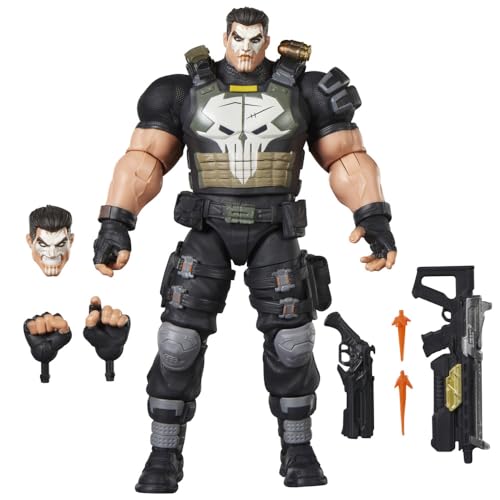
As an Amazon Associate we earn from qualifying purchases at no extra cost to you. Ratings are shown as listed on Amazon.
Input lag, stutter or ping? Know which one you have
Input lag is the delay between moving your mouse or pressing a key and seeing the result on screen. It is not the same as stutter, which is uneven frame pacing, and it is not ping, which is the round trip to the server. The fixes are different, so check first:
| Symptom | Probable cause | Fix |
|---|---|---|
| Crosshair always feels heavy or floaty | Mouse Smoothing or Acceleration, V-Sync, or Frame Generation | Turn all of them off |
| Aim feels fine in lane fights but sluggish in team fights | GPU pinned at 99% during ultimates, so a render queue forms | Reflex On + Boost, a frame cap, lower Effects Detail |
| Abilities fire late or enemies teleport, but aim is responsive | Network latency or packet loss | Wired connection, closer server region |
| Delay appears after alt-tabbing | Borderless mode or the Background FPS Cap | Use Full Screen and stay focused on the game window |
The latency math behind each setting
Every frame that waits in a queue adds one full frame time of delay, and frame time is 1000 divided by FPS. Marvel Rivals is demanding enough that the GPU hits 100% easily in six-versus-six fights, and that is exactly when a queue builds up. A cap slightly below your refresh rate keeps the GPU from saturating and also keeps G-Sync or FreeSync working, because the frame rate never goes past the variable refresh range.
| Monitor refresh | Suggested match FPS cap (about 4% under) | Frame time at cap | Delay of one queued frame |
|---|---|---|---|
| 144 Hz | 138 | 7.2 ms | +7.2 ms |
| 165 Hz | 158 | 6.3 ms | +6.3 ms |
| 240 Hz | 230 | 4.3 ms | +4.3 ms |
| 360 Hz | 345 | 2.9 ms | +2.9 ms |
If your PC cannot hold the cap in team fights, set it just under the frame rate you actually get in fights instead. A locked 120 FPS feels more responsive than an average of 160 that collapses to 100 when ultimates start.
What Frame Generation costs
Interpolated frame generation has to wait for the next real frame before it can create the frame in between, so it adds roughly one base frame time plus some processing. Published settings guides put the added delay at around 10–20 ms in Marvel Rivals, which matches the math below.
| Base FPS before Frame Generation | Base frame time | Approximate added delay |
|---|---|---|
| 60 | 16.7 ms | about 17 ms or more |
| 90 | 11.1 ms | about 11 ms or more |
| 120 | 8.3 ms | about 8 ms or more |
The counter shows a higher number, but your aim responds at the base rate. Frame Generation only makes sense on a low-end PC for casual play, and then always with Reflex or Anti-Lag 2 turned on. To get more real frames, use an upscaler instead.
Step-by-step settings for the lowest input lag
| Setting | Value | Why |
|---|---|---|
| Display Mode | Full Screen | Skips the desktop compositor and lets variable refresh behave correctly |
| V-Sync | Off | Trades latency for tear-free frames; use G-Sync or FreeSync plus a cap instead |
| Match FPS cap | See the table above | Prevents a GPU render queue |
| Lobby and Background FPS caps | Around 120 and 30 | Save power and heat; they do not affect matches |
| NVIDIA Reflex Low Latency | On + Boost | Lets the CPU submit frames just in time; Boost holds GPU clocks up during CPU-heavy moments |
| AMD Anti-Lag 2 | On (Radeon RX 5000 series or newer) | In-game latency reduction added in the February 2025 patch, most effective when GPU-limited |
| Frame Generation | Off | Adds interpolation delay |
| Super Resolution | DLSS Quality, Balanced if needed; FSR, XeSS or TSR on other cards | More real frames, lower frame time |
| Global Illumination | SSGI Low Quality, not Lumen | The single biggest frame-rate saving in the menu |
| Reflection Quality | Screen Space Reflections, not Lumen | Same reason as Global Illumination |
| Shadow Detail, Effects Detail, Post-Processing | Low | Ultimates and particle-heavy fights are where frame times spike |
| Model Detail | Medium | Keeps hero silhouettes readable |
NVIDIA’s own figures say DLSS Super Resolution plus Reflex can cut PC latency in Marvel Rivals by up to 55%, with PC latency as low as 9.7 ms at 1080p on GeForce RTX 50-series cards. These are vendor numbers measured in GPU-bound conditions, so your gain depends on your CPU, settings and the current patch. Since the Season 8.5 update in June 2026, the game ships DLSS 4.5 presets; Quality mode is the best starting point for most RTX owners who want image clarity and responsiveness.
Mouse and peripheral settings
- Mouse Smoothing and Mouse Acceleration: Off. Open Settings, go to the Keyboard tab, choose the Combat sub-tab and scroll to the Mouse section. These toggles arrived with the Season 1 patch in January 2025 and now default to off, but check them, especially if you play on an older profile.
- Remove old config edits. If you added lines to GameUserSettings.ini before the toggles existed, delete them. Some players got an anti-cheat warning from the edited file, and verifying the game files in Steam restores the original.
- Polling rate: 1000 Hz reports every 1 ms. Rates of 4000–8000 Hz shave off fractions of a millisecond more but use extra CPU time, and Rivals already loads the CPU heavily in team fights. Use them only on a strong processor.
- Windows: turn off Enhance pointer precision, the Windows form of mouse acceleration.
Driver and Windows checklist
- Update the GPU driver, but set the game’s options yourself in the menu rather than letting the NVIDIA app or AMD Adrenalin auto-optimize them, since automatic profiles balance image quality and frame rate rather than latency.
- Hardware-accelerated GPU scheduling: leave it On if you use DLSS Frame Generation, which requires it. Otherwise compare both states, because some players report better frame rates with it off.
- Game Mode: On. Xbox Game Bar captures and unused overlays: Off.
- Keep GPU usage under about 95% in fights by lowering Effects Detail or Shadow Detail further if the overlay shows it pinned at 99%. Reflex helps, but leaving headroom is what keeps latency flat when several ultimates go off at once.