Key takeaways
- Picking a laptop for AutoCAD comes down to three things: a processor that holds a high clock speed on a single core.
Picking a laptop for AutoCAD comes down to three things: a processor that holds a high clock speed on a single core, enough memory to keep large drawing sets open without paging, and a graphics chip that handles 3D views and multiple monitors cleanly. Most 2D drafting is lighter than people expect, so the money should go where AutoCAD actually spends its time rather than into gaming-style extras.
This guide is for drafters, civil and mechanical designers, architecture students and freelancers who open the software every day and need a machine that will not stall in 2026 on a heavy xref-laden sheet set. It explains which specifications deserve attention, where the practical thresholds sit, and how to match a configuration to your drawing size and your 3D habits.
How AutoCAD Uses Your Hardware
AutoCAD is an old, mature application, and much of its core drawing engine still leans on one fast processor core at a time. Regenerating a drawing, running a hatch, opening a file with hundreds of layers, or plotting to PDF are tasks where a single strong core finishes sooner than a dozen slow ones. That is why a modern mid-range processor that boosts high often feels quicker in daily drafting than an older chip with more cores.
The 3D side tells a different story. Visual styles, orbiting a solid model, rendering, and point-cloud attachments push the graphics hardware and memory harder. If your work stays in 2D plan and section views, integrated graphics from a recent processor generation can be enough. If you model solids, attach reality-capture data, or run AutoCAD alongside Revit, Civil 3D, or a rendering package, a dedicated graphics chip stops being optional.
Finally, file handling matters more than synthetic scores suggest. Drawings with external references, large raster underlays, and linked spreadsheets are limited by storage speed and RAM. A fast solid-state drive and generous memory reduce the long open and save times that quietly eat a working day.
Specifications That Matter Most
Processor: Clock Speed Before Core Count
Look for a current-generation Intel Core Ultra or Core i5/i7 class chip, or an AMD Ryzen 5/7 class chip, and read the maximum boost clock on the spec sheet. A boost figure around 4.5 GHz or higher is a good target for responsive 2D work. Six to eight performance cores are plenty for AutoCAD itself; extra cores only help if you also render, run simulation, or keep other heavy applications open. Avoid ultra-low-power chips if the laptop will mostly sit on a desk, because their sustained speed is lower under long workloads.
Memory: 16 GB Is the Floor
For ordinary drawings, 16 GB of RAM is the practical minimum. Move to 32 GB if you work with large civil site plans, point clouds, big sheet sets, or run several Autodesk programs together. Check whether the memory is soldered or upgradeable; a laptop with a free slot lets you add capacity later, while a soldered design locks you in at purchase. Dual-channel configurations also perform better than a single stick.
Graphics: Integrated, Entry Discrete, or Workstation Class
Autodesk publishes a list of certified graphics hardware, and it is worth consulting before you buy. For 2D drafting, recent integrated graphics are acceptable. For 3D modeling, a discrete GPU with at least 4 GB of dedicated video memory keeps orbiting and shaded views smooth. Professional workstation graphics cards add certified drivers and stability for teams that need guaranteed support, while mainstream consumer chips offer more raw speed for the money. Make sure the laptop can run the discrete GPU on external monitors, since some designs route outputs through the integrated chip.
Storage: Fast NVMe With Room to Grow
A 512 GB NVMe solid-state drive is the minimum; 1 TB is more comfortable once you add project archives, fonts, plot styles, and several Autodesk products. Look for PCIe Gen 4 or newer. A second M.2 slot is a useful bonus for adding a dedicated project drive later.
Display: Size, Resolution, and Color
Drafting rewards screen space. A 15.6 to 16 inch panel is the sweet spot between portability and usable workspace, and 17 inches is worth considering for a desk-bound machine. Full HD is workable, but a 2560 by 1600 or similar higher-resolution panel shows more of the drawing and renders fine lines more crisply. Choose a matte finish to reduce reflections on job sites and in bright offices. Be aware that very high pixel density can make AutoCAD menus tiny unless you tune scaling, so test the scaling settings after setup.
Spec Targets by Budget Tier
| Spec | Budget | Mid-range | Premium |
|---|---|---|---|
| Processor | Core i5 / Ryzen 5, boost near 4.5 GHz | Core i7 / Ryzen 7, boost above 4.7 GHz | High-end H-series or HX-series, boost above 5 GHz |
| RAM | 16 GB, dual-channel if possible | 32 GB | 32 to 64 GB, upgradeable slots |
| Graphics | Recent integrated, 2D focus | Discrete GPU, 6 to 8 GB video memory | Workstation-class GPU, 8 GB or more, certified drivers |
| Storage | 512 GB NVMe | 1 TB NVMe Gen 4 | 1 to 2 TB NVMe Gen 4 plus a second slot |
| Display | 15.6 inch Full HD, matte | 16 inch higher-resolution, matte | 16 to 17 inch, high-resolution, wide color |
| Ports | USB-A, USB-C, HDMI | Thunderbolt or USB4, HDMI, card reader | Multiple Thunderbolt ports, HDMI 2.1, Ethernet |
Features Beyond the Core Specs
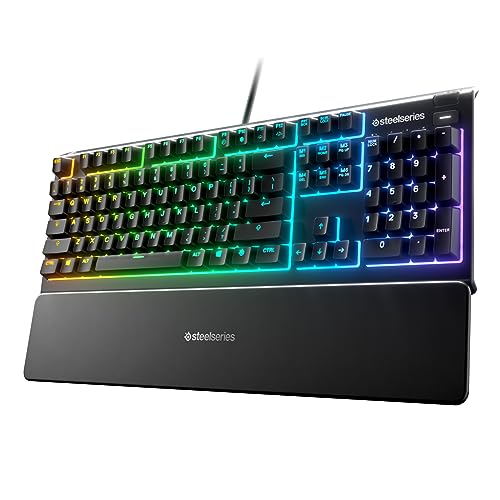
A full-size keyboard with a numeric keypad is more valuable in AutoCAD than most buyers expect. Entering coordinates, distances, and command-line values is faster with a keypad, and many CAD users rely on it daily. Pair it with a precise touchpad, but plan to use a mouse for serious drafting, ideally one with a middle wheel for pan and zoom.
Cooling is the quiet differentiator. Plot jobs, renders, and long regens create sustained load, and thin chassis designs throttle under that pressure. Look for dual fans, generous vents, and a chassis that is not paper-thin. Battery life matters if you carry the laptop to site meetings, but expect real drafting sessions to drain a battery much faster than the rated figure, so keep the charger in the bag.
Ports and connectivity deserve a short list too. Multi-monitor setups are common in design offices, so confirm that the laptop can drive two external displays at your desired resolution. A Thunderbolt or USB4 port gives you a single-cable dock option, and Wi-Fi 6E or newer helps when pulling large files from a network share.
Who Should Buy What
The Student or Beginner Drafter
If you are learning 2D drafting and basic 3D, a compact 15.6 inch laptop with a Core i5 or Ryzen 5 class chip, 16 GB of RAM, a 512 GB drive, and integrated graphics is a sensible starting point. Check your school or program for software requirements, since some courses specify minimum graphics support. Prioritize a comfortable keyboard and a matte screen for long study sessions.
The Working Civil or Architectural Drafter
Professionals handling large site plans, multiple xrefs, and frequent plotting benefit from a mid-range spec: a fast Core i7 or Ryzen 7 chip, 32 GB of RAM, a 1 TB drive, and a discrete graphics card with at least 6 GB of video memory. A 16 inch screen with a keypad improves day-to-day speed, and a dock-friendly port selection keeps the desk tidy.
The 3D Mechanical Designer or Multi-Software User
If you model solids, run Inventor or Revit alongside AutoCAD, or attach point clouds, step up to a high-performance chip, 32 to 64 GB of RAM, a strong discrete or workstation-class GPU, and robust cooling. Certified drivers matter more here, especially in firms where IT supports a standard configuration.
The Field Engineer on the Move
For site visits, weight and durability rise in importance. A 14 to 15 inch laptop with a bright, matte display, a solid battery, and a sturdy chassis serves better than a heavy workstation. Pair it with a docking station at the office so you do not give up screen space when you return.
Common Mistakes
- Overspending on gaming graphics for 2D work: a high-end gaming GPU adds cost, heat, and weight without speeding up basic drafting.
- Ignoring single-core speed: choosing a chip because of a high core count while overlooking the boost clock can make daily drawing feel slower.
- Settling for 8 GB of RAM: modern drawings, a browser, a PDF viewer, and other Autodesk tools will push an 8 GB machine into constant paging.
- Buying a glossy, low-resolution screen: reflections and coarse pixels strain your eyes during long sessions and hide thin line weights.
- Skipping the certified hardware list: unsupported graphics drivers cause display glitches, crashes, and support headaches that a short check would have avoided.
Before You Buy
- Confirm the processor boost clock and choose a current generation.
- Aim for at least 16 GB of RAM, and check whether it can be upgraded.
- Match the graphics tier to your 2D or 3D workload and check Autodesk’s certified list.
- Look for a matte display of 15.6 inches or larger with a numeric keypad.
- Verify external monitor support, Thunderbolt or USB4, and HDMI output.
- Check the cooling design and the return policy in case of throttling.
Related guides
- Logitech G Pro X Superlight 2 Vs Razer Viper V3 Pro
- Motherboard Io Panel And Back Connectors Explained
- How To Fix Stick Drift On A Ps5 Controller
Frequently Asked Questions
Do I need a dedicated graphics card for AutoCAD?
Not for basic 2D drafting, where recent integrated graphics are usually sufficient. A dedicated GPU becomes worthwhile for 3D modeling, rendering, point clouds, and multi-monitor setups with high resolutions.
How much RAM is enough for AutoCAD?
Sixteen gigabytes covers most standard drawings. Choose 32 GB if you handle large sheet sets, civil site data, or run several design programs at once.
Is a Mac suitable for AutoCAD?
A Mac version of AutoCAD exists, though its feature set and command coverage differ from the Windows edition. Check that your plugins, add-ons, and office workflow are supported before choosing a Mac.
Should I choose a workstation laptop or a regular one?
Workstation-class models offer certified drivers, sturdier builds, and longer support, which suit firms and demanding 3D work. Individual users doing mostly 2D drafting can save money with a well-cooled mainstream laptop that meets the memory and processor targets above.