Key takeaways
- Learn how to reduce input lag for console gaming: Game Mode, motion processing, frame rate modes, VRR, controller connection and network, in order of impact.
To reduce input lag on a console, start with the display: switch the TV or monitor to its game or low-latency mode, turn off motion smoothing and other picture processing, and use a performance mode that targets a higher frame rate. After that, check the controller connection, the HDMI path and the network. This guide orders the fixes from biggest typical effect to smallest, explains what each one changes, and includes a simple worked example so you can estimate how many milliseconds each step might save.
What input lag actually is
Input lag is the total delay between pressing a button and seeing the result on screen. It is built from several small delays added together: the controller sending the signal, the console reading it, the game simulating and drawing the next frame, and the display processing and showing that frame. Any step can be the bottleneck, which is why a single setting rarely solves everything.
It helps to separate it from related terms. Response time describes how quickly pixels change color, and it is not the same as input lag. Network latency is the delay to a game server and is covered later. When people say a TV “feels slow”, they usually mean the display’s processing time plus the game’s frame time.
Step one: use Game Mode and turn off extra processing
TVs often apply image processing such as noise reduction, sharpening and motion interpolation, and each stage can add delay. Game Mode, sometimes labeled differently by each brand, bypasses much of this. Many recent TVs and consoles support automatic low-latency mode, which switches Game Mode on when a console is detected, though you should confirm it in the settings.
Then look for specific features to disable: motion smoothing, motion interpolation, noise reduction, dynamic contrast and any “enhance” option. Menu names vary by brand, so check the manual if you cannot find them. Apply the setting to the HDMI input the console uses, because many TVs store picture modes per input.
If you are shopping for a new display, our guide to gaming TVs for console and PC play covers features worth looking for.
Step two: pick a frame rate mode that suits the game
Frame time is a direct contributor to input lag. At 30 frames per second each frame lasts about 33 milliseconds, at 60 it lasts about 17, and at 120 it lasts about 8. A game that updates more often reflects your input sooner. Many console games offer a performance mode with a higher frame rate and a quality mode with better visuals, and the performance mode is normally the better choice for competitive and fast action games.
A 120 Hz mode needs both a console and a display that support it, and the HDMI connection needs enough bandwidth. If that applies to you, our explainer on HDMI 2.1 for consoles and PC covers the details. Variable refresh rate can also smooth out frame pacing when frame rates are uneven, though the effect on raw lag varies by setup.
Step three: check the HDMI path
Connect the console directly to the display, using the port labeled for the highest features. Some TVs offer game-ready features on only one or two inputs. Use a certified high-speed cable that matches the console’s output mode, and avoid long, thin cables for high-bandwidth modes.
Anything between the console and the display is a possible delay: switch boxes, capture devices, AV receivers and soundbars. Where possible, send the picture straight to the display and route audio back through an audio return port or optical output. If you must use a receiver, look for a game-friendly passthrough mode in its manual.
Step four: look at the controller and its connection
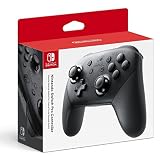
A wireless controller adds a small amount of transmission delay and can be affected by interference from routers, phones and other devices. Try a USB cable if your controller supports wired play, and compare how it feels. Keep batteries charged, because low power can cause erratic connections. If you use a third-party controller, check whether it supports the same polling and connection features as the standard one.
Also consider the accessories: some remapping adapters, extension cables and wireless dongles add their own delay. Remove them while troubleshooting, then add them back one at a time.
Step five: sort out the network separately
For online games, a good connection matters as much as a fast display. A cable from the console to the router is usually more stable than Wi-Fi, because it avoids interference and signal drops. If a cable is not practical, move closer to the router, use the less crowded wireless band, and pause large downloads and streams while playing.
Restarting the router, closing background apps on the console and choosing a game server region close to you can also help. Check the console’s network test, and treat sudden spikes as a sign to look at the home network before blaming the display.
A worked example with stated assumptions
Assume a household that plays a shooter on a TV. Before changes, the game runs at 60 frames per second on a TV in standard picture mode with motion smoothing on, using a wireless controller. The numbers below are illustrative assumptions, not measurements.
| Change | What it affects | Rough effect |
|---|---|---|
| Game Mode on, motion smoothing off | Display processing | Potentially tens of milliseconds, depending on the TV |
| Switch from 60 to 120 frames per second | Frame time | About 8 ms less per frame (17 ms to 8 ms) |
| Direct HDMI connection, no receiver in the path | Extra processing | Varies; removes an unknown delay |
| Wired controller | Transmission | Small and variable |
| Ethernet instead of Wi-Fi | Network ping and stability | Separate from display lag |
The point of the example is the order. The display setting is likely to have the largest effect, frame rate comes next, and the rest are fine-tuning. If you cannot measure each step, make one change at a time and judge how the game feels after each.
How to judge whether it improved
Precise measurement needs special equipment, but you can get a rough impression at home. A phone with slow-motion video can record the controller button and the screen together, and you can count frames between the press and the response. This is crude, so use it only to compare settings on the same device and not to produce an official number.
Otherwise rely on feel: does aiming seem more direct, do parries and jumps land when you expect, and does the game feel the same across sessions? If a change makes no difference to you, there is no need to keep fiddling.
Related guides
- Logitech G Pro X Superlight 2 Vs Razer Viper V3 Pro
- Motherboard Io Panel And Back Connectors Explained
- How To Fix Stick Drift On A Ps5 Controller
Frequently asked questions
What is a good input lag number for a gaming display?
Lower is better, and there is no single official threshold. Many gamers regard figures in the low double digits of milliseconds at the display as comfortable, while casual players may not notice more. Independent measurement sites publish figures for many TVs and monitors, but methods differ, so compare numbers from the same source and check current specifications.
Does a wired controller have less input lag than a wireless one?
Often it is slightly lower and more consistent, because a cable avoids wireless interference and transmission variability. Modern wireless controllers are close for most players, so the difference may not be noticeable. If you play competitive games, try a wired connection and see whether it feels steadier, particularly in a room with a lot of wireless devices.
Is input lag the same thing as network lag?
No. Input lag is the delay between pressing a button and seeing the result on screen, caused by the controller, console, display and game. Network lag, often called ping or latency, is the delay between your console and the game server. You can have a low-lag display and still suffer from a poor connection, so they need separate fixes.
Does a higher frame rate really reduce input lag?
Generally yes, because each frame takes less time to produce, so the screen updates sooner after your input. The shift from 30 to 60 frames per second usually feels the most obvious, and 120 frames per second helps further if the game and display support it. Performance modes in console games commonly trade visual quality for this smoother response.
Can an AV receiver or soundbar add delay to the picture?
It can. When video passes through a receiver or soundbar, extra processing may add delay, particularly if it applies its own scaling or switching. Many devices support game-friendly passthrough, but not all do. If your picture feels slower after adding one, connect the console to the display directly and send audio through the display’s audio return port instead.